

Modern keyboards and mice for your vintage Mac!
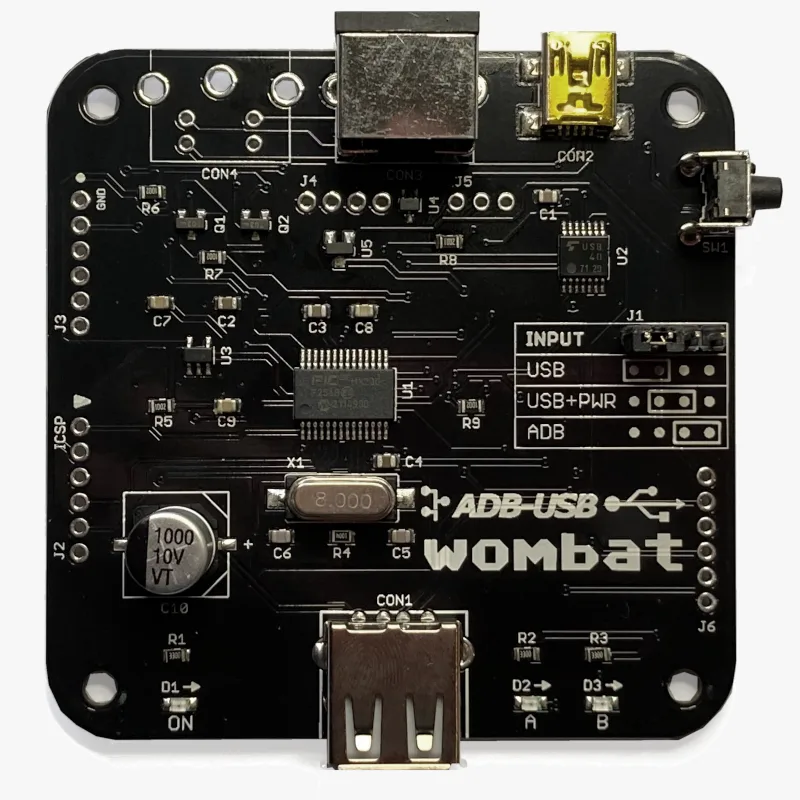
Modern keyboards and mice for your vintage Mac! The Wombat is a bidirectional ADB-to-USB and USB-to-ADB converter for keyboards and mice.
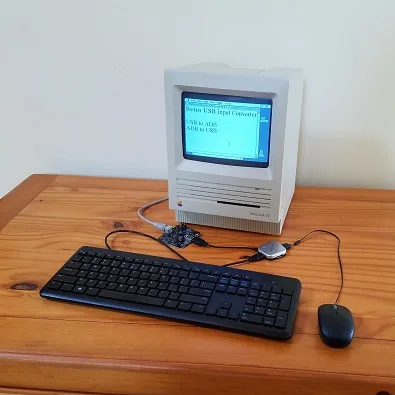
- Connect modern USB keyboards and mice to a classic ADB-based Macintosh, Apple IIgs, or NeXT
- Connect legacy ADB input hardware to a USB-based computer running Windows, macOS, or Linux
No special software or drivers are needed – just plug it in and go.
Now you can finally use a modern optical mouse with your vintage Macintosh, or amuse your coworkers with a retro ADB keyboard on your work machine. ADB-USB Wombat is an indispensable tool for Apple collectors and enthusiasts.
Optional accessories for your Wombat:
Features
BMOW’s ADB-USB Wombat is great for breathing new life into your vintage Apple hardware collection. If you love old Macs, you know ADB keyboards are expensive and hard to find, and ADB mice are sticky and trouble-prone. With the Wombat, you can substitute modern USB input peripherals instead. Or if you swear by your old Apple Extended Keyboard, you can use it with your modern computer. Visitors are sure to smile when they see you running 1980s Apple input peripherals on your current-year machine.
- Bidirectional: converts USB to ADB, or ADB to USB
- Works with your favorite mice and keyboards, including wireless, gaming, and mechanical keyboards
- Use several keyboards and mice at the same time
- On-board power key for remote turn-on
- Custom key mappings
- Supports international keyboards, including ISO, AZERTY, and QWERTZ layouts
- Works with USB switches and KVMs, including IP KVMs like PiKVM
- Startup key combinations work, like Command-Option-P-R to reset PRAM, or Control-Apple-Reset on a IIgs
- Adjustable mouse speed, right-click, and scroll wheel behavior, saved in the Wombat’s memory
- No external power source needed
- Upgradable firmware
The Wombat was developed by Steve Chamberlin, here at Big Mess o’ Wires. See the blog archive for technical details on its software and hardware.

Compatibility
The Wombat works with all Apple computers, keyboards, and mice that have an ADB connector (a 4-pin mini DIN): most early Macintosh models, the Apple IIgs, and some NeXT models. It also works with standard USB keyboards and mice. In ADB-to-USB mode, it works with Windows, macOS, Linux, ChromeOS, or any other operating system that supports standard USB keyboards and mice.
The Wombat has been tested with a very wide range of USB devices, including wireless keyboard and mouse combos, Logitech Bolt receivers, gaming keyboards and mice, mechanical keyboards with QMK or VIA firmware, Apple Magic Keyboards, USB switches, and KVMs. If a USB device doesn’t work as expected, first update to the latest firmware.
Security dongles, graphics tablets, joysticks, and other less common devices aren’t currently supported. The Mac Plus, 512K, and 128K use an older non-ADB connector for keyboards and mice, and aren’t supported.
What are ADB and USB?
 ADB connector
ADB (Apple Desktop Bus) was Apple’s standard for connecting keyboards and mice from 1986 through 1998. It was used by the Apple IIgs and all early Macintosh models except the Mac Plus, 512K, and 128K. The ADB connector is a round 4-pin mini DIN, physically identical to the S-Video connector.
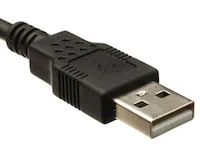 USB-A connector
USB (Universal Serial Bus) replaced ADB, Firewire, PS/2, and other earlier standards, and is used by nearly every computer today. Every Apple computer since 1998 has used USB for its keyboard and mouse.
Converting between the two takes more than a plug adapter. ADB and USB use very different protocols, signal speeds, signal formats, and voltages.
Usage
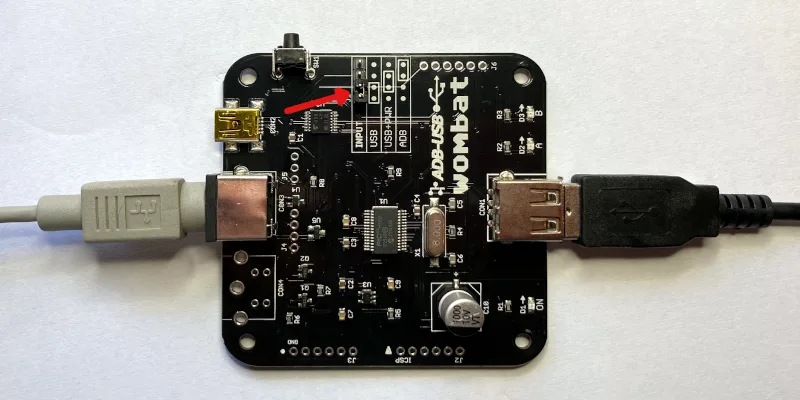
The Wombat converts keyboard and mouse data in one direction at a time, selected by the INPUT jumper on the board. Set the jumper before connecting anything. A wrong jumper setting is the most common cause of problems.
The Wombat board has three connectors:
- CON1: USB-A port, for USB keyboards, mice, and hubs
- CON2: USB Mini-B port, to a USB computer, or to a USB charger for standby power
- CON3: ADB port, to ADB keyboards and mice, or to an ADB computer
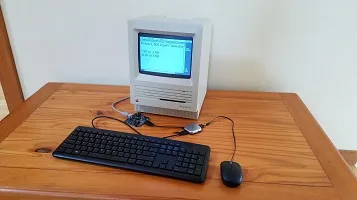
USB to ADB: USB keyboards and mice on a vintage computer
Setup
- Set the jumper to USB, as shown in the diagram.
- Connect CON3 to the computer’s ADB port with an ADB cable. The computer powers the Wombat.
- Connect a USB keyboard or mouse to CON1, or connect a USB hub for several devices.
- Turn on the computer.
Connect the Wombat before turning on the computer, because the computer only looks for ADB devices when it starts up. USB devices can be plugged in and unplugged at any time.
Multiple Devices and Hubs
To connect a keyboard and a mouse at the same time, a simple bus-powered 2-port or 4-port USB hub is recommended. Some hubs with their own external power supply can backfeed power into the Wombat when it’s off, causing problems.
Multiple USB keyboards and mice can be used together, with firmware 3.20 or later. All your devices work at once, combining their input, along with any ADB keyboards and mice connected to the computer.
The Wombat can manage up to 8 total hub ports. Note this is a limit of ports, not connected devices, so using a complex many-port hub is not recommended. Some USB equipment may have invisible ports due to its internal design. A keyboard with two built-in USB ports counts as 3 or 4 ports total, and a 7-port hub counts as 8. Any devices connected to ports beyond the max of 8 are ignored.
Right Button
The Wombat’s preferences determine what the right (secondary) button does on a USB mouse. CTRL LEFT CLICK sends Control + click, which opens contextual menus in Mac OS 8 and later. LEFT CLICK makes it a second left button. RIGHT CLICK sends a true right click, for NeXT computers. Most Macs ignore it.
Scroll Wheel
Scroll wheel movements are turned into virtual presses of the up and down arrow keys. This works well for scrolling documents and file dialogs. This behavior can be turned off in the preferences.
Mouse Speed
If a USB mouse is too slow or too fast, even after adjusting the computer’s mouse control panel, change the Wombat’s mouse speed in the preferences. This applies a scaling factor to the raw motion data.
 Power Key
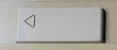
Real ADB keyboards have a power key with a triangle logo, which serves to turn on many Mac models and also acts as a Reset key for the Apple IIgs. The Wombat has a push button that serves the same purpose. For Macs that support keyboard startup, pushing this button will turn on the computer even when the Wombat is off. The PRINT SCREEN and F13 keys on a USB keyboard also function as a power key, but only while the Wombat is already on. They’re handy for restarting with Control-Command-Power, or Control-Power on some models.
ADB Standby Power
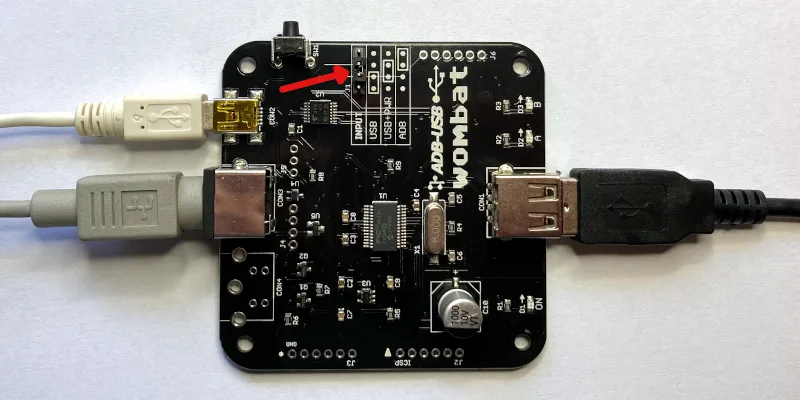
Connections for ADB Standby Power
To turn on a computer from the keyboard’s PRINT SCREEN or F13 key instead of the Wombat button, the Wombat needs power while the computer is off. Set the jumper to USB+PWR, as shown in the diagram, and connect a USB charger to CON2 with a USB Mini-B cable. In USB+PWR mode, the charger must always be connected, regardless of whether the computer is on or off.
ADB to USB: ADB keyboards and mice on a modern computer
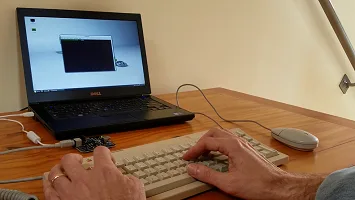
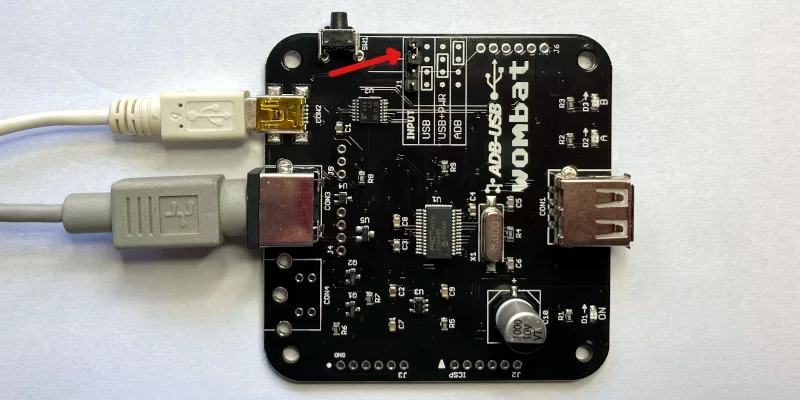
Setup
- Set the jumper to ADB, as shown in the diagram.
- Connect CON2 to the computer’s USB port with a USB-A to Mini-B cable. The computer powers the Wombat.
- Connect an ADB keyboard or mouse to CON3. Daisy-chain more devices through the keyboard’s second port.
- Leave CON1 empty.
The ADB devices appear to the computer as standard USB keyboards and mice, so no drivers are needed. The Wombat supports up to two ADB keyboards and two ADB mice at once, and extra buttons on multi-button mice and trackballs like the Kensington Turbo Mouse. With firmware 3.19 or later, ADB devices can be plugged in and unplugged while the Wombat is running, and are ready to use within a few seconds.
Power Key
The ADB keyboard’s power key is sent to the computer as the USB Power key. You can remap it to another key with the custom key mapping tool.
Status LEDs
During a firmware update or installation of a custom key mapping file, the LEDs show the update status.
During normal operation of the Wombat, the LEDs show the host connection status and input activity.
LED A – On when the Wombat has a working connection to the computer
LED B – Blinks when there’s keyboard or mouse activity
Settings
Preferences
With firmware 3.21 or later, open an empty text document or go to the BASIC prompt and press Control-Shift-Capslock-P. The Wombat types a menu of its current settings:
BMOW Wombat ver 3.21 preferences
1 Keyboard layout is US
2 Mouse speed is 3 of 6
3 Right button is CTRL LEFT CLICK
4 Scroll wheel arrow keys are ON
0 Restore defaults
1234 change, RETURN save, ESC cancel
Press 1 to 4 to change the corresponding setting. Changes take effect immediately, so you can try them out. Press 0 to restore the defaults, RETURN to save, or ESC to cancel and exit the menu without saving. Preferences mode will also auto-cancel after 30 seconds without any key press.
Keyboard layout – US, ISO GENERIC, ISO FR BE, or ISO DE CH. See International Keyboards below.
Mouse speed – 1 (slowest) to 6 (fastest).
Right button – CTRL LEFT CLICK, LEFT CLICK, or RIGHT CLICK. See USB to ADB above.
Scroll wheel arrow keys – ON or OFF, to enable conversion of wheel movements to up/down arrow key presses.
Settings are kept through power-off and firmware updates. Installing a custom key mapping file resets them to the defaults.
Custom Key Mappings
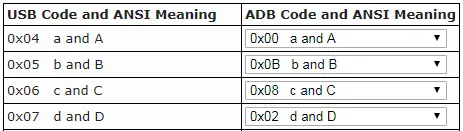
With firmware 0.3.0 or later, you can create customized mapping tables to control the USB/ADB conversion behavior. It’s possible to change which keys act as Command and Option, reassign the function keys, and more. See the Wombat Keymap Tool for details.
Help Commands
Issue help commands to the Wombat using any attached keyboard. Open an empty text document or command prompt first. The Wombat “types” its output there.
Control-Shift-Capslock-P – Enters the preferences menu, to configure the Wombat’s settings. See Preferences above.
Control-Shift-Capslock-V – Shows the firmware version number
Control-Shift-Capslock-I – Shows the USB vendor and product ID or ADB handler ID of each keyboard and mouse
Control-Shift-Capslock-C – Enters keydump mode, which shows the USB key code of each key you press and the ADB key code it’s mapped to (or vice versa). Useful for troubleshooting key mapping problems. Press Control-D to exit.
International Keyboards
The Wombat supports non-US keyboards, including British, Canadian French, Danish, Greek, AZERTY, QWERTZ, and other layouts. Select the matching keyboard layout in your computer’s keyboard control panel, so each key types the correct character.
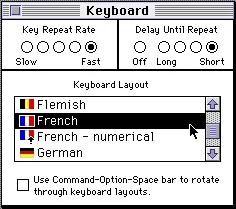
Macintosh System 7 Keyboard Control Panel
Keyboard Layout Setting
The keyboard layout option in the Wombat’s preferences tells it whether your keyboard is US (ANSI) or ISO style, and which keys to use when it generates output for help commands. If the key above TAB acts like the key to the right of LEFT SHIFT, switch the keyboard layout between US and an ISO layout to fix it.
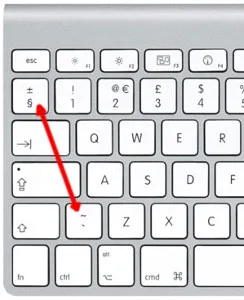
ISO Keyboard Key Swap
Except for the US/ISO selection, the Wombat’s keyboard layout setting doesn’t otherwise affect the characters you type yourself during normal typing – those are determined by your computer’s keyboard settings, not the Wombat settings. Because the Wombat types its menus and messages by pressing keys, however, some letters or symbols in its help command text will come out wrong if its keyboard layout doesn’t match yours. If that happens, use the preferences help command and press 1 to change the layout. The options are:
- US: US, Canadian English, and other ANSI keyboards
- ISO GENERIC: UK, Spanish, Nordic, Dutch, and other ISO QWERTY keyboards
- ISO FR BE: French and Belgian AZERTY keyboards
- ISO DE CH: German, Swiss, Austrian, and other QWERTZ keyboards
USB to ADB with Non-US Keyboards
For best results, use an Apple-brand country-specific USB keyboard. In many countries, PC-style USB keyboards have a different symbol layout than Apple keyboards. They’ll work, but some symbol keys won’t type what’s printed on them.
ADB to USB with Non-US Keyboards
macOS
The first time you connect the Wombat to a modern Mac, the Keyboard Setup Assistant asks you to identify the keyboard. For non-US keyboards, choose an ISO type. If the key above TAB acts like the key to the right of LEFT SHIFT, even with an ISO layout set in the Wombat, make the assistant run again: delete /Library/Preferences/com.apple.keyboardtype.plist, restart the computer, and follow its steps.
Windows
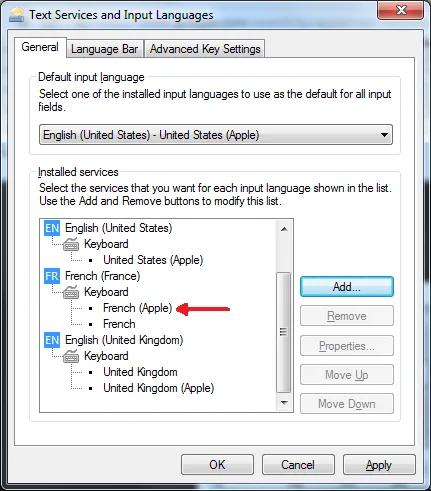
Windows 7 Text Services and Input Languages Control Panel
For country-specific ADB keyboards, choose the Apple version of your keyboard type in Windows’ Text Services and Input Languages control panel, such as United Kingdom (Apple), French (Apple), or German (Apple). If the Apple versions aren’t listed, install the Apple keyboard driver applekeyboardinstaller64.exe.
Firmware
Installing Updates
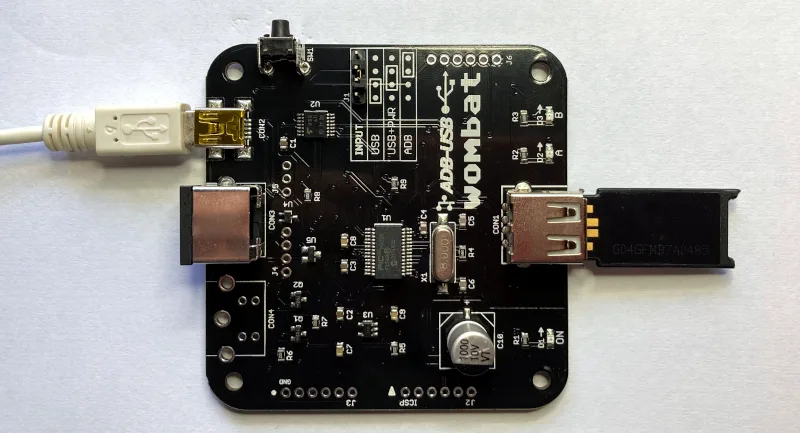
Firmware updates fix bugs and add new features. They don’t change your saved preferences. To update:
- Download the latest firmware from Downloads below, and unzip it.
- Copy firmware.hex to the top level of a FAT32-formatted USB flash drive.
- Disconnect all power from the Wombat, and plug the flash drive into CON1. Don’t use a hub.
- Choose a power source:
- an ADB cable from a running ADB computer to CON3, with the jumper set to USB, or
- a USB Mini-B cable from a USB charger to CON2, with the jumper set to USB+PWR
- Hold down the Wombat’s power key button, and connect the power source.
- Keep holding the button until the A and B LEDs start blinking rapidly, then let go.
- Wait about 10 seconds. When A and B blink slowly together, the update is done.
- Disconnect power, remove the flash drive, and set the jumper back to its normal position.
LED Activity During Updates
During a firmware update or installation of a key mapping file, the A and B LEDs show the progress:
A and B alternate slowly – searching for a firmware or key mapping file
A and B alternate rapidly – installing the firmware or key mapping
A and B blink slowly together – update finished successfully
If B blinks several times while A stays off, there’s an error:
2 blinks – no valid firmware on the chip, Wombat can’t start
3 blinks – no Wombat file found on the USB drive (see the FAQ)
4 blinks – error in the file
5 blinks – error while writing data to the chip
Downloads
ADB-USB Wombat latest firmware version: adb-usb-wombat-3.21 (October 7 2026)
3D-printable enclosure (contributed by James Kelly, Creative Commons license with attribution)
3D-printable enclosure (contributed by James Kelly, Creative Commons license with attribution)
Older firmware versions (try these if the latest version gives you problems)
adb-usb-wombat-3.20 (October 6 2026)
adb-usb-wombat-3.19 (October 5 2026)
adb-usb-wombat-3.18 (October 4 2026)
adb-usb-wombat-3.17 (October 3 2026)
adb-usb-wombat-0.3.16 (October 2 2026)
adb-usb-wombat-0.3.15 (October 2 2026)
adb-usb-wombat-0.3.14 (October 2 2026)
adb-usb-wombat-0.3.13 (October 2 2026)
adb-usb-wombat-0.3.12 (October 2 2026)
adb-usb-wombat-0.3.11 (September 28 2026)
adb-usb-wombat-0.3.10 (September 25 2026)
adb-usb-wombat-0.3.9 (August 9 2023)
adb-usb-wombat-3.19 (October 5 2026)
adb-usb-wombat-3.18 (October 4 2026)
adb-usb-wombat-3.17 (October 3 2026)
adb-usb-wombat-0.3.16 (October 2 2026)
adb-usb-wombat-0.3.15 (October 2 2026)
adb-usb-wombat-0.3.14 (October 2 2026)
adb-usb-wombat-0.3.13 (October 2 2026)
adb-usb-wombat-0.3.12 (October 2 2026)
adb-usb-wombat-0.3.11 (September 28 2026)
adb-usb-wombat-0.3.10 (September 25 2026)
adb-usb-wombat-0.3.9 (August 9 2023)
FAQ
Setup
The Wombat doesn’t work at all. What should I check first?
Check the INPUT jumper. It’s the most common cause of problems. Set it to USB to use USB keyboards and mice with an ADB computer, or ADB to use ADB keyboards and mice with a USB computer. See the diagrams under Usage. When the Wombat has a working connection to the computer, the A LED is on.
In USB-to-ADB mode, my keyboard or mouse works when plugged in directly to the Wombat, but not through a hub.
Try setting the INPUT jumper to USB+PWR and connect a dedicated 5V USB power adapter (like a phone charger) to CON2 with a USB Mini-B cable. The Wombat normally gets its power from the computer’s ADB port, which can only supply a limited amount. USB hubs and USB switches, keyboards with backlights or rechargeable batteries, and some wireless receivers can need more power. Signs of a power problem include devices that work only some of the time, and LEDs and keyboard lights that flicker or dim.
Also try a simple 2-port or 4-port hub. The Wombat can manage up to 8 total hub ports (a limit of ports, not connected devices). Some USB equipment may have invisible ports due to its internal design. A keyboard with two built-in USB ports counts as 3 or 4 ports total, and a 7-port hub counts as 8. Any devices connected to ports beyond the max of 8 are ignored.
In ADB-to-USB mode, my computer doesn’t detect the Wombat.
Some USB cables are charge-only, with no data wires. They power the Wombat, but the computer can’t see it. Try a different USB-A to Mini-B cable, ideally one you’ve used to transfer data with another device.
The A and B LEDs blink back and forth, and the Wombat never starts.
The Wombat is in firmware update mode, which it enters if its power key is held down at power-up. Some S-video cables have pins connected together inside, which looks like a held power key and can also make the Mac turn itself on. Use a real ADB cable or a different S-video cable. The Macintosh Portable causes this too (see Compatibility).
Do I need to connect everything before turning on the computer?
In USB-to-ADB mode, connect the Wombat to the ADB computer before turning it on, because the computer only looks for ADB devices at startup. USB devices can be plugged into the Wombat at any time. In ADB-to-USB mode, ADB devices can be plugged in at any time (firmware 3.19 or later).
Can I use more than one keyboard or mouse?
Yes. In USB-to-ADB mode, connect several USB keyboards and mice through a hub (firmware 3.20 or later), up to the limit of 8 hub ports. In ADB-to-USB mode, daisy-chain up to two ADB keyboards and two ADB mice, such as a keyboard and an Apple Adjustable Keyboard keypad, or a keyboard, trackball, and mouse.
Can I add a second ADB port to the Wombat?
For advanced users only: the board has an empty footprint at CON4 where a second ADB connector (a 4-pin mini DIN) could be soldered, wired in parallel with the main ADB port.
Mouse
My USB mouse moves too slowly (or too fast).
Change the mouse speed in the Wombat’s preferences: press Control-Shift-Capslock-P, then 2. Gaming mice with high polling rates (500 or 1000 Hz) can feel slow and miss some scroll wheel steps. If the mouse’s software can store a polling rate in the mouse, like Razer Synapse or Logitech G Hub, setting it to 125 Hz also helps.
How do I right-click?
By default, the right button of a USB mouse sends Control + click, which opens contextual menus in Mac OS 8 and later. For NeXT computers, set the right button to RIGHT CLICK in the Wombat’s preferences.
Keyboard
Do startup key combinations work, like resetting PRAM or the Apple IIgs Control-Apple-Reset?
Yes, with firmware 0.3.16 or later. On a USB keyboard, the Windows key acts as Command (Apple), Alt acts as Option, and Print Screen, F13, or the power key button on the Wombat board acts as the power key, which is also the Apple IIgs Reset key.
How can I use the help commands?
Make sure an empty text document or BASIC prompt is open, so you can see the Wombat’s text output. Help commands need Control, Shift, Capslock, and a letter key all held down at once, and some inexpensive keyboards can’t recognize that many keys together. Try a different keyboard.
In ADB-to-USB mode, the ADB keyboard doesn’t work after a cold boot, and all its LEDs are lit.
Some Macs, like the iBook G3, switch USB power off and on during startup, which can hang ADB keyboards and mice. Unplug the Wombat and plug it back in.
With an Apple Extended Keyboard, my second ADB device doesn’t respond after a cold boot.
Unplug the second device from the keyboard, and plug it back in.
Compatibility
Can I use the Wombat with a Macintosh Portable?
Yes, with external power. Set the jumper to USB+PWR and connect a USB charger to CON2 with a USB Mini-B cable, confirming that the Wombat is powered before turning on the Portable.
Does the Wombat work with USB switches and KVMs?
Yes. For IP KVMs like PiKVM, NanoKVM, or JetKVM, set the KVM to relative mouse mode. Absolute (tablet-style) pointers aren’t supported.
Does the Wombat work with Logitech Bolt or MX keyboards and mice?
Yes, with firmware 0.3.12 or later. Some older comments on this page say they’re incompatible, but that’s been resolved.
Does the Wombat work with joysticks, gamepads, and graphics tablets?
No, these aren’t currently supported. Coming soon, maybe?
Does the Wombat work with the Mac Plus, Mac 512K, or Mac 128K?
No. These computers use an older non-ADB connector for keyboards and mice, and aren’t compatible with the Wombat.
Firmware
The firmware update can’t find the firmware file (B blinks 3 times).
Make sure firmware.hex is at the top level of the USB drive, not in a folder, and that the drive is formatted as FAT32 with an MBR (Master Boot Record) partition scheme. Most USB drives come formatted this way, but drives formatted on a Mac often use a GUID partition scheme, which won’t work. To reformat a drive on a Mac, use the Disk Utility application. Select the USB drive, choose the option to format the drive as FAT32, and change the partition scheme to MBR before formatting. This erases everything on the drive. If the problem continues, try a different drive. Some large drives don’t work.
How do I check which firmware version I have?
Open an empty text document or go to the BASIC prompt and press Control-Shift-Capslock-V. The Wombat types its firmware version.
Thanks so much for putting the time and effort into this adapter. Finally got my hands on one. Your work is so unique, and incredibly useful/fun.
Has the existing stock of boards been updated to 1.2? I was hoping to get one, and to hook it up to my Apple A1243 keyboard, if possible.
Yes, v1.2 is shipping now for new orders.
Just got my retro USB last week. Real dumb question, but others may ask as well: using this with a IIGS, how to emulate Open Apple-Control-Esc and Open Apple-Control-Reset? Figure I must be missing something obvious.
Thanks for making awesome products for my beloved Apple IIs!
Reset = the power key, with the options described above
Open Apple = the Command key (or Windows key on Windows-centric keyboards). Older ADB keyboards used to have both the open apple and the command cloverleaf icons on the same key, like this example: https://upload.wikimedia.org/wikipedia/commons/3/30/Apple_Macintosh_ADB_Keyboard.jpg
Thanks for the info! I am using a nice wireless keyboard/mouse combo with the Wombat which are approximately the same dimensions of the IIGS originals: https://www.amazon.com/gp/product/B06XHY8J7M/ref=oh_aui_detailpage_o01_s02?ie=UTF8&psc=1
They work great, just one more dumb question: 1) Which key is mapped to the Option key?
Thanks again!
If you have Windows-style keyboard, alt = option and windows key = command. It works the same as when using a Windows-style keyboard on a modern iMac or MacBook.
Hello,
I’m enjoying my USB Wombat greatly. Thanks for making this available! I’m loving the scroll wheel -> arrow keys mapping on the latest FW.
First, a note: I’ve had mixed luck with PS2->USB adapters. I have an older PS2 KVM that I’m using along with the USB Wombat. On my 1.1 board (with the added capacitor, although that didn’t make a difference) 2 out of 4 USB->PS2 adapters I found worked, while the other two did not. The nonfunctional ones work fine on a PC, but on the Wombat board the mouse and keyboard receive power (apparently) but nothing comes through.
I ordered a functioning one from Amazon with the name “SANOXY USB to PS/2 Adapter.” I would list the functioning USB IDs, but another adapter I ordered (quite different looking, I should add) has the same USB ID and strings but does not work.
Second, a request: would it be possible to alter the mapping between Alt and Windows keys on a PC keyboard so that it feels like a Mac keyboard?
Thanks!
Are you going PS2 -> KVM -> PS2 -> Adapter -> USB -> Wombat -> ADB -> Macintosh? Wow!!
I hope to provide user-defined key remapping in the future, as other people have requested something similar. The current mapping for alt/windows matches Apple’s own USB keyboards, where “alt” and “option” are printed on the same key, and I’m following the standard they set.
Yup, there’s also a USB -> PS2 adapter on the mouse before the KVM, but that’s just a pin adapter as far as I know.
Thanks for the response and thanks again for the product.
I am typing this on my Apple Extended Keyboard II, and the wombat works great!
A few things though:
1. Can we map the Power key on the ADB keyboard? Now that we have keymappings, it should be possible, but I don’t see it in the keymap generator page.
2. Is it possible to enable right modifier keys? Is it a hardware limitation or can it be enabled?
https://archive.org/stream/Guide_to_the_Macintosh_Family_Hardware_Second_Edition#page/n347/mode/2up says you need to set a register to enable this.
Thanks for this great product!
Both are theoretically possible, but not implemented due to technical difficulties.
I have the wombat and it has been a true miracle worker for me. I am ordering one of these to solve the two device issue. If it works, you may wish to consider recommending them. They’re only $10
Cute USB Mini 2-Port USB 2.0 Hub Splitter (Black) https://www.amazon.com/dp/B00FJG5T4W/ref=cm_sw_r_cp_api_u.M3zb72G7NEP
Do you have plans to support Macintosh JIS emulation?
No JIS plans at the moment, sorry. Eventually I’d like to open the firmware, so other people could pursue additions that are a bit too niche for me to justify the time required to do it myself. Specific 3rd-party trackpads, gamepads, JIS devices, maybe NeXT-specific stuff, etc.
Is it possible for the wombat to mount a usb flash drive using OS 9?
The Wombat is for HID input devices like keyboards and mice. Even if it were possible to mount external storage devices, it would be excruciatingly slow over ADB – like 1 KB per second. 🙂
Hello Steve! I want to give a huge “thank you!” for this magnificent piece of Hard-/Software! Finally a dream has come true: I can utilize optical mouses on my old Macs. I’m starting to put some money aside so I can get more of these for any Mac I own. 🙂 Again, thanks! Really!
Thanks so much for creating this little device it is amazing!
Steve, I have an old Summagraphic’s Bit Pad Plus digitizing pad that was originally used with my Mac Plus – way back when. Would there be any problem using the Wombat to connect that pad to a Mac Pro running OS X? (Fully understanding that the driver is going to be a whole ‘nother can of worms.)
A digitizing pad probably won’t work, sorry. The Wombat can translate standard mouse and keyboard events from ADB to USB, but doesn’t know about other devices like tablets, joysticks, dongles, etc.
Drats! Well another piece of ancient technology that’ll gather even more dust. But many thanks for your rapid and honest reply.
Hi Steve. Would this connect an Apple Extended Keyboard M0115 to a PC with little to no issue?
Yes, with the Wombat you could connect the AEK to any modern USB computer.
Thanks to your magical Wombat, I am typing this on a completely cherry AEK II. It was owned by a film production studio in Hollywood. Someone splashed coffee on the lower right corner. This resulted in the Num-pad \’.\’ key becoming unresponsive and the \’Enter\’ key sticking. The incident must have occurred when it was relatively new because they put it back in the plastic bag it shipped in and stuck it in a storage closet in the original cardboard box. After all this, it sat marked \”SURPLUS\” for an emergency, I guess, for like 20-26 years. I was able to completely disassemble it, washed the coffee off the keys with some sudsy dawn and disassembled the two ALPS switches, cleaning the guts.
The end result of all this was a cosmetically perfect, un-yellowed AEK II. There is not a stain or mark on this thing and it now works absolutely perfectly. The cream ALPS switches feel crisp and new!
Thank you! Typing on this takes me back to my second Mac, a IIci, back in 1990.
Got my wireless keyboard with built in trackpad working on my IIgs! Trackpad is a bit slow on the Logitech K400 I tried so I’m going to test some other keyboards as well to see if there is any difference. Thank you!
Would this work with ADB joysticks such as the Gravis MouseStick II?
Nope, sorry – it’s designed for keyboards and mice. See some of the comments above yours for more discussion of this.
I have a question. I would like to hook up a keyboard from a Macintosh II Classic to this device and then run the USB cable to a raspberry pi 3 I just wanted to know if this is doable or not? Thank you for your time.
You might need to use a powered USB hub with the RPi, because I think it can’t source as much current to USB devices as a normal computer can. Other than that it should work.
Okay that’s no problem at all 🙂 I looked at some other options this one looks the easiest and it looks the cleanest too. You really made my day. I’ll be placing an order in a few weeks. And I’ve shown my cousin your site and he’s likes some of your products for his old Mac equipment too! Thanks.
Can not get the Wombat to work fully in the ADB to USB mode. Mouse pointer moves and selects.Keyboard has no response other than B light on Wombat flashing twice on keystroke. Any suggestions?
I’ve got a rev 1.0 ‘Wombat’ and it seems a little flakey. I’ve updated its firmware to the latest and sometimes it just decides to crash; the light that usually flickers when USB input is detected just stops. Unplugging my USB hub and waiting for a few seconds before reconnecting it gets it going again. The weird thing is sometimes it’s really “crash happy” and others it’s rock solid for quite a while.
Any ideas on getting it stable (tried different hubs, peripherals and such) or modifications that are required?
Please use the “contact” link at upper-right for support email, if you have specific customer support issues. The web page comments aren’t monitored regularly and are more intended for general-interest feature-related inquiries.
@Al Unfortunately I’m not sure what more to suggest. If this is with your OS 9 machine, maybe it’s an OS configuration issue there? The hardware is covered by a 1-year warranty – use the contact link to get in touch if you suspect a hardware problem and want to do a product return. @Sarah could be power glitches, you might try running with a standby 5V power supply connected to CON2, if your ADB power supply is questionable.
Hi! I have an old Power Macintosh G3 Tower and keyboard that work well on Mac O.S. 8.6– but the ADB Mouse no longer does. The trackballs (I have three ADB mice and switch them out frequently now) stick, even with daily cleaning of the inner wheels and mousepads. So I’d like to connect an optical USB mouse (like the Macally ICEMini I use on my MacMini) to the G3 so that I can continue to operate the vintage versions of PageMaker 6, Poser 4, and Photoshop 5 that I use for personal creative projects. I’m willing to purchase the Wombat, case, and spare ADB cable if that setup will work. Please– PLEASE– reply and let me know if this is solution I need or if you know of another. Respectfully, Peter (Dr Zik).
Yes, that’s handled by the USB-to-ADB feature described above. Check out the video for a demonstration. You don’t necessarily need the case or cable accessories, but they make it more convenient to use the Wombat.
hey Steve… I ordered a Wombat on August 1 – will the device ship with 0.3.0 firmware?… thanks in advance…
The current lot of boards has 0.2.2 pre-installed. If you want the key remapping feature that was added in 0.3.0, you can update using the “Firmware Updates” process above.
Is there a way to increase the speed of the mouse movement in the Wombat? I using an Apple Desktop Bus Mouse II hooked up to my 2008 Mac Pro through an Apple Extended Keyboard and even though I have the Tracking Speed set to Fast (maximum) in the Mouse System Preferences it is still pretty slow. With my Magic Mouse I can move across the full width and height of two side by side monitors (30″ and 24″) without ever lifting my hand or the mouse off of the table, just extending my fingers. Thanks.
Mouse speed is adjusted through the operating system of whatever computer the Wombat is connected to. There’s no way to modify the speed on the Wombat hardware, sorry.
The issue was that I had both both mice connected at the same time and while the Mouse Preferences panel (which was customized for the Magic Mouse and all of its capabilities) settings affected the ADB mouse it seemed to use the same parameters (acceleration scaling, etc.) for the Magic Mouse for both mice. When I disconnected the mice and then plugged in just the ADB mouse the Mouse Preferences panel became very basic and the settings were then appropriate for the ADB mouse. The ADB mouse now works as expected. Posting this follow up in case anyone else has the same confusion.
I noticed an unusual issue. When I start my 2008 Mac Pro with the Wombat connected to a USB port, the CD tray ejects and the startup screen gives the “Prohibitory Symbol” (circle with slash through it) which, according to https://support.apple.com/en-us/HT204156 means that it can’t find a System Folder to boot from. My guess is that it thinks the Wombat is a USB thumb drive that I might be trying to boot from. If I unplug the Wombat it boots normally. Same thing happens whether I have a keyboard and/or mouse connected to the Wombat or not.
@Sean Manning, I have the same issue with my Mac Pro 2008. It also ejects the DVD tray but it has been doing that since I replaced the original DVD drive, so it is probably not connected.
@Sean Manning, just to clarify; I am also having the same boot issue with the Wombat and my Mac Pro 2008. In case that wasn\’t clear in my original post.
Steve,
Will the Wombat work with a Wireless Keyboard/Trackpad Combo like the Logitech K400r for instance?
Wireless keyboards and mice are OK so long as they aren’t Bluetooth.
So this won’t work on a Mac Plus? I was about to get it to use in the printer port… it looks like an ADB port 🙁 I hate the plus keyboard!!!!
The Mac Plus is not ADB – it uses a totally different type of keyboard and mouse shared with the Mac 128K and 512K.
We are looking for an adapter to connect current USB devices (keyboard, trackball) via a KVM extender to an AT keyboard input on a legacy system.
• Is ADB the same as PS/2?
• Can your WOMBAT also function on an AT-keyboard input?
• If not, do you have such a device?
I am looking forward to your (quick) reply.
No, sorry. AT and PS/2 keyboards were used with 1980’s IBM computers. ADB is a completely different standard for 1980’s and 1990’s Apple keyboards and mice.
Hi Steve,
As soon as I saw this, I couldn’t order it fast enough. ADB keyboards and mice are hard to find, and this will give me tons of options for what to use with my SE. Is there any kind of noticeable lag with keystrokes or mouse action by using the Wombat as a signal converter? I assume not but wanted to check.
There’s no perceptible delay – you can watch the videos for an example. If you measured it very accurately, the delay is probably in the 10-20 milliseconds range.
Just a High Five comment here…. Awesome device that let’s me use my AppleDesign computer with my work computer. Gets a lot of attention from my coworkers, especially those that have used Macs for years. THANKS
Sorry, That previous comment should have read: AppleDesign Keyboard
I have my Wombat and my AEK battleship running smoothly. Even have media keys mapped to function keys via Keyboard Maestro. Great product!
I’m confused about the Power key, however. The description above implies that either (a) the power key on the keyboard works or (b) the blue button on the Wombat works as a substitute. I have the Wombat in ADB mode, plugged into my AEK at Con3 and the iMac at Con2. Con1 is empty. Pressing the blue button does nothing. Am I missing something?
The power key is for early ADB-equipped Macs like the Mac II series or Power Macs. It’s a true switch that makes an electrical connection to turn on the computer, rather than being a normal keyboard key. For the Wombat, it’s only relevant when in USB-to-ADB translation mode. USB-equipped Macs like the iMac don’t work this way and the physical power key isn’t used.