

Modern keyboards and mice for your vintage Mac!
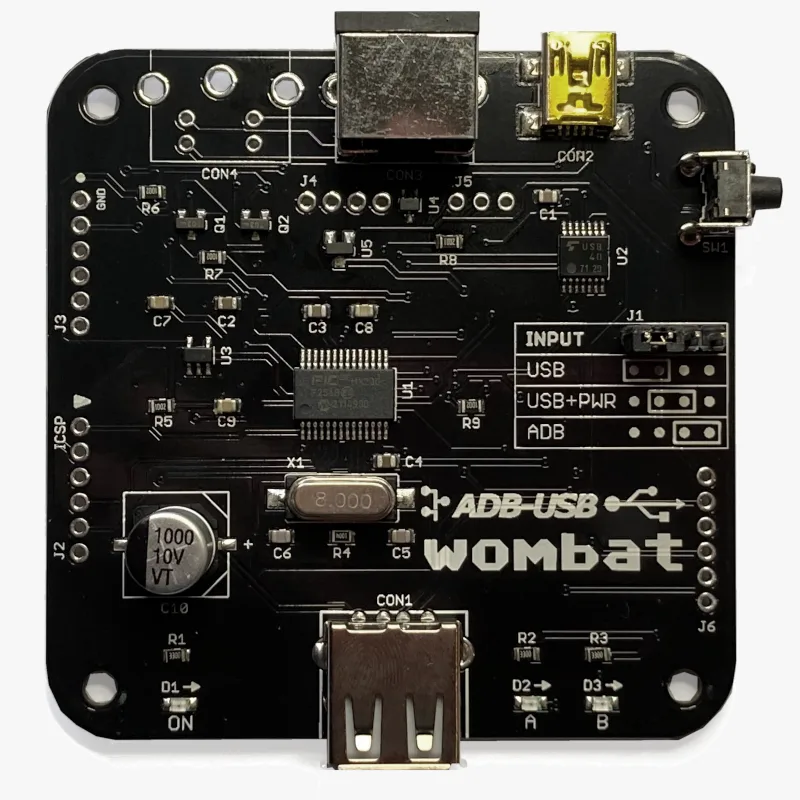
Modern keyboards and mice for your vintage Mac! The Wombat is a bidirectional ADB-to-USB and USB-to-ADB converter for keyboards and mice.
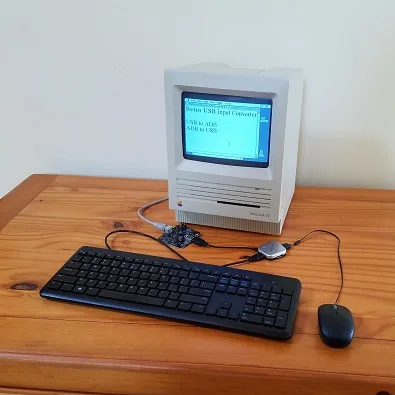
- Connect modern USB keyboards and mice to a classic ADB-based Macintosh, Apple IIgs, or NeXT
- Connect legacy ADB input hardware to a USB-based computer running Windows, macOS, or Linux
No special software or drivers are needed – just plug it in and go.
Now you can finally use a modern optical mouse with your vintage Macintosh, or amuse your coworkers with a retro ADB keyboard on your work machine. ADB-USB Wombat is an indispensable tool for Apple collectors and enthusiasts.
Optional accessories for your Wombat:
Features
BMOW’s ADB-USB Wombat is great for breathing new life into your vintage Apple hardware collection. If you love old Macs, you know ADB keyboards are expensive and hard to find, and ADB mice are sticky and trouble-prone. With the Wombat, you can substitute modern USB input peripherals instead. Or if you swear by your old Apple Extended Keyboard, you can use it with your modern computer. Visitors are sure to smile when they see you running 1980s Apple input peripherals on your current-year machine.
- Bidirectional: converts USB to ADB, or ADB to USB
- Works with your favorite mice and keyboards, including wireless, gaming, and mechanical keyboards
- Use several keyboards and mice at the same time
- On-board power key for remote turn-on
- Custom key mappings
- Supports international keyboards, including ISO, AZERTY, and QWERTZ layouts
- Works with USB switches and KVMs, including IP KVMs like PiKVM
- Startup key combinations work, like Command-Option-P-R to reset PRAM, or Control-Apple-Reset on a IIgs
- Adjustable mouse speed, right-click, and scroll wheel behavior, saved in the Wombat’s memory
- No external power source needed
- Upgradable firmware
The Wombat was developed by Steve Chamberlin, here at Big Mess o’ Wires. See the blog archive for technical details on its software and hardware.

Compatibility
The Wombat works with all Apple computers, keyboards, and mice that have an ADB connector (a 4-pin mini DIN): most early Macintosh models, the Apple IIgs, and some NeXT models. It also works with standard USB keyboards and mice. In ADB-to-USB mode, it works with Windows, macOS, Linux, ChromeOS, or any other operating system that supports standard USB keyboards and mice.
The Wombat has been tested with a very wide range of USB devices, including wireless keyboard and mouse combos, Logitech Bolt receivers, gaming keyboards and mice, mechanical keyboards with QMK or VIA firmware, Apple Magic Keyboards, USB switches, and KVMs. If a USB device doesn’t work as expected, first update to the latest firmware.
Security dongles, graphics tablets, joysticks, and other less common devices aren’t currently supported. The Mac Plus, 512K, and 128K use an older non-ADB connector for keyboards and mice, and aren’t supported.
What are ADB and USB?
 ADB connector
ADB (Apple Desktop Bus) was Apple’s standard for connecting keyboards and mice from 1986 through 1998. It was used by the Apple IIgs and all early Macintosh models except the Mac Plus, 512K, and 128K. The ADB connector is a round 4-pin mini DIN, physically identical to the S-Video connector.
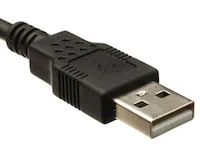 USB-A connector
USB (Universal Serial Bus) replaced ADB, Firewire, PS/2, and other earlier standards, and is used by nearly every computer today. Every Apple computer since 1998 has used USB for its keyboard and mouse.
Converting between the two takes more than a plug adapter. ADB and USB use very different protocols, signal speeds, signal formats, and voltages.
Usage
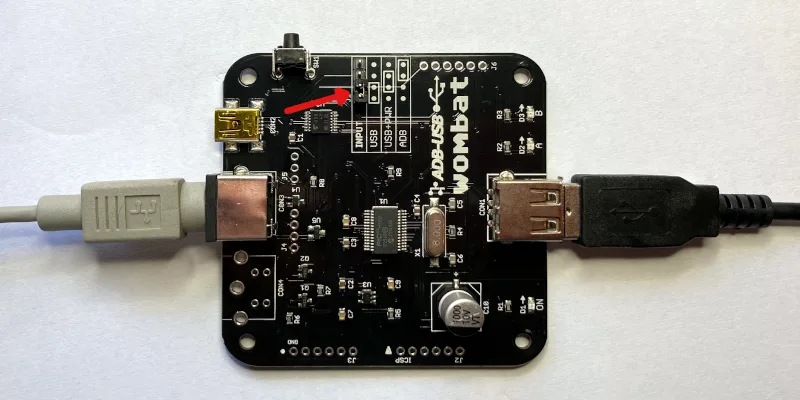
The Wombat converts keyboard and mouse data in one direction at a time, selected by the INPUT jumper on the board. Set the jumper before connecting anything. A wrong jumper setting is the most common cause of problems.
The Wombat board has three connectors:
- CON1: USB-A port, for USB keyboards, mice, and hubs
- CON2: USB Mini-B port, to a USB computer, or to a USB charger for standby power
- CON3: ADB port, to ADB keyboards and mice, or to an ADB computer
USB to ADB: USB keyboards and mice on a vintage computer
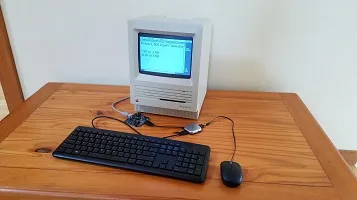
Setup
- Set the jumper to USB, as shown in the diagram.
- Connect CON3 to the computer’s ADB port with an ADB cable. The computer powers the Wombat.
- Connect a USB keyboard or mouse to CON1, or connect a USB hub for several devices.
- Turn on the computer.
Connect the Wombat before turning on the computer, because the computer only looks for ADB devices when it starts up. USB devices can be plugged in and unplugged at any time.
Multiple Devices and Hubs
To connect a keyboard and a mouse at the same time, a simple bus-powered 2-port or 4-port USB hub is recommended. Some hubs with their own external power supply can backfeed power into the Wombat when it’s off, causing problems.
Multiple USB keyboards and mice can be used together, with firmware 3.20 or later. All your devices work at once, combining their input, along with any ADB keyboards and mice connected to the computer.
The Wombat can manage up to 8 total hub ports. Note this is a limit of ports, not connected devices, so using a complex many-port hub is not recommended. Some USB equipment may have invisible ports due to its internal design. A keyboard with two built-in USB ports counts as 3 or 4 ports total, and a 7-port hub counts as 8. Any devices connected to ports beyond the max of 8 are ignored.
Right Button
The Wombat’s preferences determine what the right (secondary) button does on a USB mouse. CTRL LEFT CLICK sends Control + click, which opens contextual menus in Mac OS 8 and later. LEFT CLICK makes it a second left button. RIGHT CLICK sends a true right click, for NeXT computers. Most Macs ignore it.
Scroll Wheel
Scroll wheel movements are turned into virtual presses of the up and down arrow keys. This works well for scrolling documents and file dialogs. This behavior can be turned off in the preferences.
Mouse Speed
If a USB mouse is too slow or too fast, even after adjusting the computer’s mouse control panel, change the Wombat’s mouse speed in the preferences. This applies a scaling factor to the raw motion data.
 Power Key
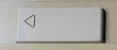
Real ADB keyboards have a power key with a triangle logo, which serves to turn on many Mac models and also acts as a Reset key for the Apple IIgs. The Wombat has a push button that serves the same purpose. For Macs that support keyboard startup, pushing this button will turn on the computer even when the Wombat is off. The PRINT SCREEN and F13 keys on a USB keyboard also function as a power key, but only while the Wombat is already on. They’re handy for restarting with Control-Command-Power, or Control-Power on some models.
ADB Standby Power
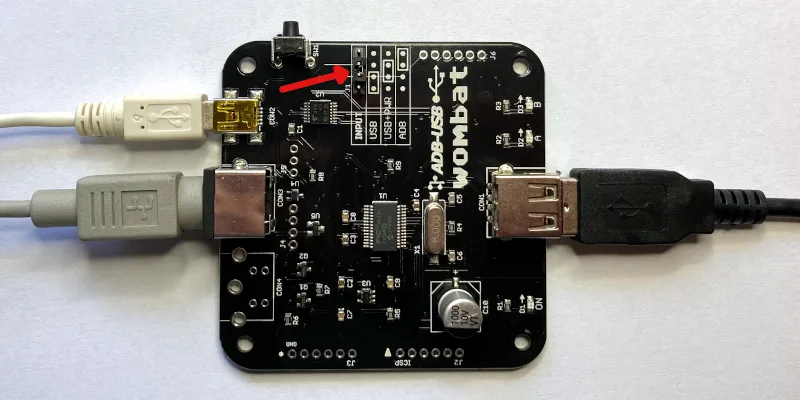
Connections for ADB Standby Power
To turn on a computer from the keyboard’s PRINT SCREEN or F13 key instead of the Wombat button, the Wombat needs power while the computer is off. Set the jumper to USB+PWR, as shown in the diagram, and connect a USB charger to CON2 with a USB Mini-B cable. In USB+PWR mode, the charger must always be connected, regardless of whether the computer is on or off.
ADB to USB: ADB keyboards and mice on a modern computer
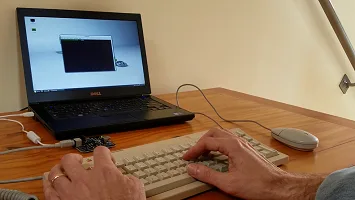
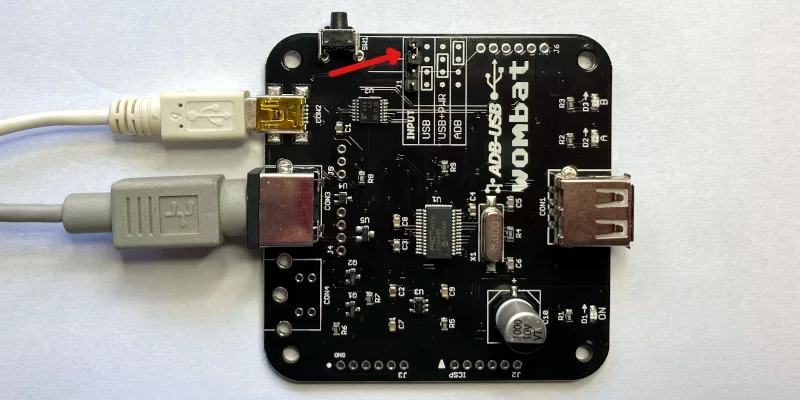
Setup
- Set the jumper to ADB, as shown in the diagram.
- Connect CON2 to the computer’s USB port with a USB-A to Mini-B cable. The computer powers the Wombat.
- Connect an ADB keyboard or mouse to CON3. Daisy-chain more devices through the keyboard’s second port.
- Leave CON1 empty.
The ADB devices appear to the computer as standard USB keyboards and mice, so no drivers are needed. The Wombat supports up to two ADB keyboards and two ADB mice at once, and extra buttons on multi-button mice and trackballs like the Kensington Turbo Mouse. With firmware 3.19 or later, ADB devices can be plugged in and unplugged while the Wombat is running, and are ready to use within a few seconds.
Power Key
The ADB keyboard’s power key is sent to the computer as the USB Power key. You can remap it to another key with the custom key mapping tool.
Status LEDs
During a firmware update or installation of a custom key mapping file, the LEDs show the update status.
During normal operation of the Wombat, the LEDs show the host connection status and input activity.
LED A – On when the Wombat has a working connection to the computer
LED B – Blinks when there’s keyboard or mouse activity
Settings
Preferences
With firmware 3.21 or later, open an empty text document or go to the BASIC prompt and press Control-Shift-Capslock-P. The Wombat types a menu of its current settings:
BMOW Wombat ver 3.21 preferences
1 Keyboard layout is US
2 Mouse speed is 3 of 6
3 Right button is CTRL LEFT CLICK
4 Scroll wheel arrow keys are ON
0 Restore defaults
1234 change, RETURN save, ESC cancel
Press 1 to 4 to change the corresponding setting. Changes take effect immediately, so you can try them out. Press 0 to restore the defaults, RETURN to save, or ESC to cancel and exit the menu without saving. Preferences mode will also auto-cancel after 30 seconds without any key press.
Keyboard layout – US, ISO GENERIC, ISO FR BE, or ISO DE CH. See International Keyboards below.
Mouse speed – 1 (slowest) to 6 (fastest).
Right button – CTRL LEFT CLICK, LEFT CLICK, or RIGHT CLICK. See USB to ADB above.
Scroll wheel arrow keys – ON or OFF, to enable conversion of wheel movements to up/down arrow key presses.
Settings are kept through power-off and firmware updates. Installing a custom key mapping file resets them to the defaults.
Custom Key Mappings
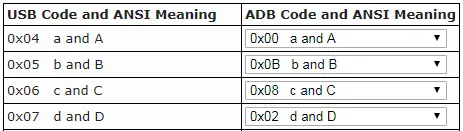
With firmware 0.3.0 or later, you can create customized mapping tables to control the USB/ADB conversion behavior. It’s possible to change which keys act as Command and Option, reassign the function keys, and more. See the Wombat Keymap Tool for details.
Help Commands
Issue help commands to the Wombat using any attached keyboard. Open an empty text document or command prompt first. The Wombat “types” its output there.
Control-Shift-Capslock-P – Enters the preferences menu, to configure the Wombat’s settings. See Preferences above.
Control-Shift-Capslock-V – Shows the firmware version number
Control-Shift-Capslock-I – Shows the USB vendor and product ID or ADB handler ID of each keyboard and mouse
Control-Shift-Capslock-C – Enters keydump mode, which shows the USB key code of each key you press and the ADB key code it’s mapped to (or vice versa). Useful for troubleshooting key mapping problems. Press Control-D to exit.
International Keyboards
The Wombat supports non-US keyboards, including British, Canadian French, Danish, Greek, AZERTY, QWERTZ, and other layouts. Select the matching keyboard layout in your computer’s keyboard control panel, so each key types the correct character.
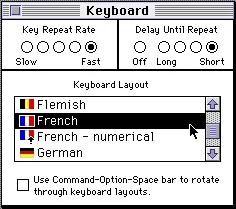
Macintosh System 7 Keyboard Control Panel
Keyboard Layout Setting
The keyboard layout option in the Wombat’s preferences tells it whether your keyboard is US (ANSI) or ISO style, and which keys to use when it generates output for help commands. If the key above TAB acts like the key to the right of LEFT SHIFT, switch the keyboard layout between US and an ISO layout to fix it.
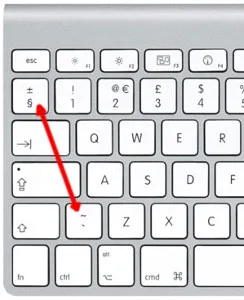
ISO Keyboard Key Swap
Except for the US/ISO selection, the Wombat’s keyboard layout setting doesn’t otherwise affect the characters you type yourself during normal typing – those are determined by your computer’s keyboard settings, not the Wombat settings. Because the Wombat types its menus and messages by pressing keys, however, some letters or symbols in its help command text will come out wrong if its keyboard layout doesn’t match yours. If that happens, use the preferences help command and press 1 to change the layout. The options are:
- US: US, Canadian English, and other ANSI keyboards
- ISO GENERIC: UK, Spanish, Nordic, Dutch, and other ISO QWERTY keyboards
- ISO FR BE: French and Belgian AZERTY keyboards
- ISO DE CH: German, Swiss, Austrian, and other QWERTZ keyboards
USB to ADB with Non-US Keyboards
For best results, use an Apple-brand country-specific USB keyboard. In many countries, PC-style USB keyboards have a different symbol layout than Apple keyboards. They’ll work, but some symbol keys won’t type what’s printed on them.
ADB to USB with Non-US Keyboards
macOS
The first time you connect the Wombat to a modern Mac, the Keyboard Setup Assistant asks you to identify the keyboard. For non-US keyboards, choose an ISO type. If the key above TAB acts like the key to the right of LEFT SHIFT, even with an ISO layout set in the Wombat, make the assistant run again: delete /Library/Preferences/com.apple.keyboardtype.plist, restart the computer, and follow its steps.
Windows
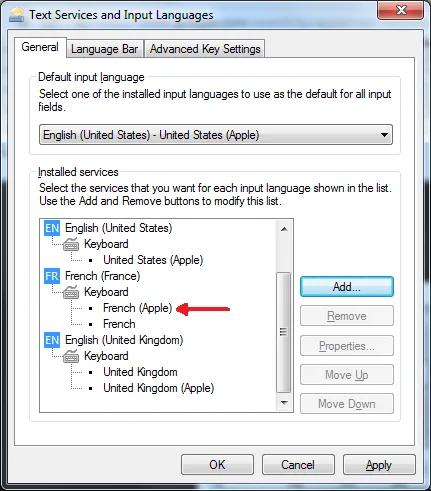
Windows 7 Text Services and Input Languages Control Panel
For country-specific ADB keyboards, choose the Apple version of your keyboard type in Windows’ Text Services and Input Languages control panel, such as United Kingdom (Apple), French (Apple), or German (Apple). If the Apple versions aren’t listed, install the Apple keyboard driver applekeyboardinstaller64.exe.
Firmware
Installing Updates
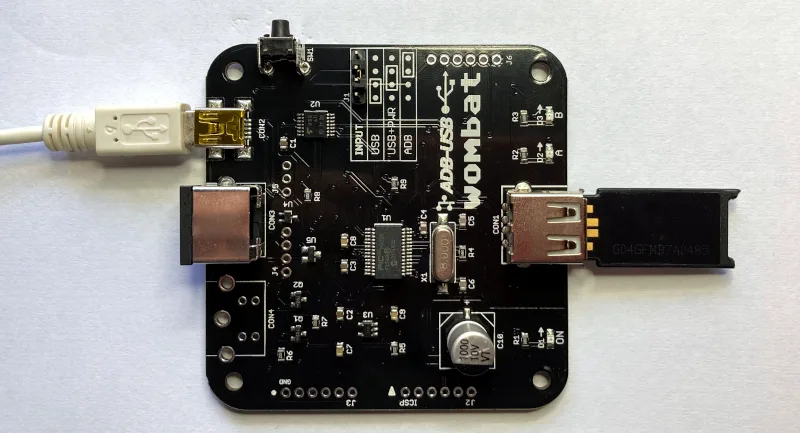
Firmware updates fix bugs and add new features. They don’t change your saved preferences. To update:
- Download the latest firmware from Downloads below, and unzip it.
- Copy firmware.hex to the top level of a FAT32-formatted USB flash drive.
- Disconnect all power from the Wombat, and plug the flash drive into CON1. Don’t use a hub.
- Choose a power source:
- an ADB cable from a running ADB computer to CON3, with the jumper set to USB, or
- a USB Mini-B cable from a USB charger to CON2, with the jumper set to USB+PWR
- Hold down the Wombat’s power key button, and connect the power source.
- Keep holding the button until the A and B LEDs start blinking rapidly, then let go.
- Wait about 10 seconds. When A and B blink slowly together, the update is done.
- Disconnect power, remove the flash drive, and set the jumper back to its normal position.
LED Activity During Updates
During a firmware update or installation of a key mapping file, the A and B LEDs show the progress:
A and B alternate slowly – searching for a firmware or key mapping file
A and B alternate rapidly – installing the firmware or key mapping
A and B blink slowly together – update finished successfully
If B blinks several times while A stays off, there’s an error:
2 blinks – no valid firmware on the chip, Wombat can’t start
3 blinks – no Wombat file found on the USB drive (see the FAQ)
4 blinks – error in the file
5 blinks – error while writing data to the chip
Downloads
ADB-USB Wombat latest firmware version: adb-usb-wombat-3.21 (October 7 2026)
3D-printable enclosure (contributed by James Kelly, Creative Commons license with attribution)
3D-printable enclosure (contributed by James Kelly, Creative Commons license with attribution)
Older firmware versions (try these if the latest version gives you problems)
adb-usb-wombat-3.20 (October 6 2026)
adb-usb-wombat-3.19 (October 5 2026)
adb-usb-wombat-3.18 (October 4 2026)
adb-usb-wombat-3.17 (October 3 2026)
adb-usb-wombat-0.3.16 (October 2 2026)
adb-usb-wombat-0.3.15 (October 2 2026)
adb-usb-wombat-0.3.14 (October 2 2026)
adb-usb-wombat-0.3.13 (October 2 2026)
adb-usb-wombat-0.3.12 (October 2 2026)
adb-usb-wombat-0.3.11 (September 28 2026)
adb-usb-wombat-0.3.10 (September 25 2026)
adb-usb-wombat-0.3.9 (August 9 2023)
adb-usb-wombat-3.19 (October 5 2026)
adb-usb-wombat-3.18 (October 4 2026)
adb-usb-wombat-3.17 (October 3 2026)
adb-usb-wombat-0.3.16 (October 2 2026)
adb-usb-wombat-0.3.15 (October 2 2026)
adb-usb-wombat-0.3.14 (October 2 2026)
adb-usb-wombat-0.3.13 (October 2 2026)
adb-usb-wombat-0.3.12 (October 2 2026)
adb-usb-wombat-0.3.11 (September 28 2026)
adb-usb-wombat-0.3.10 (September 25 2026)
adb-usb-wombat-0.3.9 (August 9 2023)
FAQ
Setup
The Wombat doesn’t work at all. What should I check first?
Check the INPUT jumper. It’s the most common cause of problems. Set it to USB to use USB keyboards and mice with an ADB computer, or ADB to use ADB keyboards and mice with a USB computer. See the diagrams under Usage. When the Wombat has a working connection to the computer, the A LED is on.
In USB-to-ADB mode, my keyboard or mouse works when plugged in directly to the Wombat, but not through a hub.
Try setting the INPUT jumper to USB+PWR and connect a dedicated 5V USB power adapter (like a phone charger) to CON2 with a USB Mini-B cable. The Wombat normally gets its power from the computer’s ADB port, which can only supply a limited amount. USB hubs and USB switches, keyboards with backlights or rechargeable batteries, and some wireless receivers can need more power. Signs of a power problem include devices that work only some of the time, and LEDs and keyboard lights that flicker or dim.
Also try a simple 2-port or 4-port hub. The Wombat can manage up to 8 total hub ports (a limit of ports, not connected devices). Some USB equipment may have invisible ports due to its internal design. A keyboard with two built-in USB ports counts as 3 or 4 ports total, and a 7-port hub counts as 8. Any devices connected to ports beyond the max of 8 are ignored.
In ADB-to-USB mode, my computer doesn’t detect the Wombat.
Some USB cables are charge-only, with no data wires. They power the Wombat, but the computer can’t see it. Try a different USB-A to Mini-B cable, ideally one you’ve used to transfer data with another device.
The A and B LEDs blink back and forth, and the Wombat never starts.
The Wombat is in firmware update mode, which it enters if its power key is held down at power-up. Some S-video cables have pins connected together inside, which looks like a held power key and can also make the Mac turn itself on. Use a real ADB cable or a different S-video cable. The Macintosh Portable causes this too (see Compatibility).
Do I need to connect everything before turning on the computer?
In USB-to-ADB mode, connect the Wombat to the ADB computer before turning it on, because the computer only looks for ADB devices at startup. USB devices can be plugged into the Wombat at any time. In ADB-to-USB mode, ADB devices can be plugged in at any time (firmware 3.19 or later).
Can I use more than one keyboard or mouse?
Yes. In USB-to-ADB mode, connect several USB keyboards and mice through a hub (firmware 3.20 or later), up to the limit of 8 hub ports. In ADB-to-USB mode, daisy-chain up to two ADB keyboards and two ADB mice, such as a keyboard and an Apple Adjustable Keyboard keypad, or a keyboard, trackball, and mouse.
Can I add a second ADB port to the Wombat?
For advanced users only: the board has an empty footprint at CON4 where a second ADB connector (a 4-pin mini DIN) could be soldered, wired in parallel with the main ADB port.
Mouse
My USB mouse moves too slowly (or too fast).
Change the mouse speed in the Wombat’s preferences: press Control-Shift-Capslock-P, then 2. Gaming mice with high polling rates (500 or 1000 Hz) can feel slow and miss some scroll wheel steps. If the mouse’s software can store a polling rate in the mouse, like Razer Synapse or Logitech G Hub, setting it to 125 Hz also helps.
How do I right-click?
By default, the right button of a USB mouse sends Control + click, which opens contextual menus in Mac OS 8 and later. For NeXT computers, set the right button to RIGHT CLICK in the Wombat’s preferences.
Keyboard
Do startup key combinations work, like resetting PRAM or the Apple IIgs Control-Apple-Reset?
Yes, with firmware 0.3.16 or later. On a USB keyboard, the Windows key acts as Command (Apple), Alt acts as Option, and Print Screen, F13, or the power key button on the Wombat board acts as the power key, which is also the Apple IIgs Reset key.
How can I use the help commands?
Make sure an empty text document or BASIC prompt is open, so you can see the Wombat’s text output. Help commands need Control, Shift, Capslock, and a letter key all held down at once, and some inexpensive keyboards can’t recognize that many keys together. Try a different keyboard.
In ADB-to-USB mode, the ADB keyboard doesn’t work after a cold boot, and all its LEDs are lit.
Some Macs, like the iBook G3, switch USB power off and on during startup, which can hang ADB keyboards and mice. Unplug the Wombat and plug it back in.
With an Apple Extended Keyboard, my second ADB device doesn’t respond after a cold boot.
Unplug the second device from the keyboard, and plug it back in.
Compatibility
Can I use the Wombat with a Macintosh Portable?
Yes, with external power. Set the jumper to USB+PWR and connect a USB charger to CON2 with a USB Mini-B cable, confirming that the Wombat is powered before turning on the Portable.
Does the Wombat work with USB switches and KVMs?
Yes. For IP KVMs like PiKVM, NanoKVM, or JetKVM, set the KVM to relative mouse mode. Absolute (tablet-style) pointers aren’t supported.
Does the Wombat work with Logitech Bolt or MX keyboards and mice?
Yes, with firmware 0.3.12 or later. Some older comments on this page say they’re incompatible, but that’s been resolved.
Does the Wombat work with joysticks, gamepads, and graphics tablets?
No, these aren’t currently supported. Coming soon, maybe?
Does the Wombat work with the Mac Plus, Mac 512K, or Mac 128K?
No. These computers use an older non-ADB connector for keyboards and mice, and aren’t compatible with the Wombat.
Firmware
The firmware update can’t find the firmware file (B blinks 3 times).
Make sure firmware.hex is at the top level of the USB drive, not in a folder, and that the drive is formatted as FAT32 with an MBR (Master Boot Record) partition scheme. Most USB drives come formatted this way, but drives formatted on a Mac often use a GUID partition scheme, which won’t work. To reformat a drive on a Mac, use the Disk Utility application. Select the USB drive, choose the option to format the drive as FAT32, and change the partition scheme to MBR before formatting. This erases everything on the drive. If the problem continues, try a different drive. Some large drives don’t work.
How do I check which firmware version I have?
Open an empty text document or go to the BASIC prompt and press Control-Shift-Capslock-V. The Wombat types its firmware version.
The ADB-USB Wombat is now back in stock at the BMOW Store.
I got mine a couple of months ago, and its such a great product. Being able to use an optical mouse on my old mac is great! The funny issue I am having with a Mac LCII is when I power on the machine the A and B lights will flash alternately at about 1second interval. It doesn’t matter rather my usb devices are plugged in or not. Unplugging the ADB and replugging it after the OS starts to boot fixes it until the computer is next powered off.
Any thoughts?
It sounds like something may be holding the power button during power-up, which triggers the bootloader described above. Please use the Customer Support link at top-right if you need help with individual issues.
Hi Steve, would it be possible for you to add the date last updated on this page next to the latest firmware version? I check back infrequently as I’m hoping one day a new version comes out that improves the power button behaviour on an AEKII (I e-mailed about inability to map it as an Fn key a while ago) but I can never remember what the last version number that came out was!
Cheers, Jake
Done! I’m currently focused on other projects. Rest assured there will be an announcement about any future firmware updates.
Jake, Wombat firmware 0.3.6 resolves the power key issue that you encountered. https://www.bigmessowires.com/2021/06/25/adb-usb-wombat-update-power-key-fix/
Steve, thank you, that’s awesome. I’ve tested it, and it works great of course. I’ve commented on the blog post my thanks to Alice as well. Outstanding after sales support from your team. 🙂
Hello Steve,
I have been using the Wombat for almost two years now (I think), and it is making my typing experience much better since I can use my favourite keyboard, the Apple M0118 with the orange Alps. However, recently I have been trying to find a way to keep dust from settling inside. Have you considered making a more permanent case solution? I started making this enclosure for myself to print, and then I thought maybe this could become a joint venture?
Please, let me know what you think. 🙂
https://imgur.com/a/26wV5Gr
Sincerely,
Kristian Möller (a.k.a. ktkm)
Looks very nice! The last time I looked, commercial 3D printing and injection molding are both still too expensive for making retail products at this sales volume, compared to laser-cut 2D acrylic. You might considering sharing the model on Thingiverse so people with a 3D printer could make one themselves. You can contact me directly (Contact link at the page’s top-right) if you want to discuss more.
Kristian, that looks like a good enclosure, it’s the perfect kind of thing to share with the community on Thingiverse.
Thingiverse sounds like a good idea. I’m definitely considering it. Thank you.
Steve, I’ll get back to you when I have a more noticeable product, and perhaps with some questions regarding external LED connections.
Hey, I\’ve managed to get everything set up and working with both a computer and an iPad Pro for the most part, with the only real exception being very specifically my ADB Mouse II not wanting to work with anything but actual ADB computers. I have an original edge-and-rectangle ADB Mouse that works fine, so I think it\’s just the ADB Mouse II. Has this ever been an issue before?
There shouldn’t be any issues with the Mouse II. I think its internal electronics are identical to the original ADB mouse, and the only difference is its shape.
Hi. I just received the ADB-USB converter with the ADB cable, and it doesn’t seem to work. I have a Macintosh SE 80mb 800k drive with the original ADB keyboard, which works fine with the ADB mouse. I tried to connect an old black usb apple pro keyboard M7803, and even a Logitech usb keyboard and I get nothing. The light on the wombat does go on when connected (I tried hitting the side switch also), and still get no keyboard input
For 1-on-1 customer support issues, please use the Customer Support link at top-right, and I’ll do my best to help you troubleshoot. You may just need to set the board’s input type jumper to USB, see instructions above.
Hey, responding to the comment you made earlier, it seems that there’s actually a few different versions of the internals for the ADB Mouse II, all with somewhat different hardware. The mouse that seems to have issues is specifically a Logitech model with an M-AL-APL4 logic board. I don’t have any other ADB II mice at the moment, so I can’t tell if it’s just some revisions. I can confirm that my Gravis Mousestick II (sort of) works as a mouse through the Wombat.
Can i use it with JP keyboard? (Maybe my keyboard is JP 108key)
I haven’t tested it with a Japanese keyboard. I think it’s the same QWERTY layout as US keyboards, so it should be OK.
Just received a unit – great device, thanks.
Worked like a charm on my 68k machines for MacOS, A/UX and Linux, but NetBSD failed to discover my M2980 keyboard. On boot, the kernel reported “mapped device” (3) not “extended keyboard” (2).
Turned out the Wombat was flashed with 0.3.2 .. so I updated to 0.3.6 and all’s well now!
Correction: my USB keyboard is an A1243; the M2980 is my ADB keyboard I used as reference.
I tried to get a keyboard running with the QMK firmware. I’ve configured it to the most compatible mode (UEFI compatible) as possible, but I don’t even get a signal on the Wombat. I wonder, if someone else has tried this, yet, and found a solution?!
Hello! Thanks to your product, I’m using aek II(m3501) well in Korea, and I recently got aek I(m0115) and connected it, but it doesn’t work as I thought.
First, I can’t use the right alt key in aek I, it doesn’t recognized.
and If I connect aek II after connecting aek I, the mapping seems to be initialized.
In order to use the Korean/English conversion in Korea, the right alt key must be available, is there any way?
If possible, it would be nice to use both aek II and aek I together.
Thank you.
Hi,
In case it helps anyone else, my observation is that a known good Razer DeathAdder Elite Gaming Mouse doesn’t seem to work from USB->ADB mode. I’ve confirmed the Wombat is working with a USB keyboard, but no luck with the mouse either through a USB hub or plugged directly.
I’ll try out a different mouse when I can get my hands on one.
I’ve confirmed that the Razer DeathAdder Elite Gaming Mouse does not work, even when directly connected as the only device. Maybe a power-draw issue because of the gaudy LCD lighting of the mouse?
My working config at the moment is K-CEVE 4 port USB Switch w/ Touch ID Magic Keyboard + Magic Trackpad. It’s a pretty nice setup that toggles a single keyboard+mouse between a modern Mac, modern gaming PC, and vintage PowerMac 6100. Love it! 😀
Hi folks: I’m interested in using the Wombat to connect an Apple Extended Keyboard ii to a M1 Macbook pro. The new laptops only have USB-c inputs. Is there any problem going from your mini-USB to USB-c? And is there anything about the new M1 machines that would cause trouble when using the Wombat? Thank you!
It works fine on an M1 Macbook Air. You’ll just need a USB-C adapter, same as for any other USB peripheral.
Do you have anything that will allow me to plug in a non-ADB mouse into a NeXT Keyboard. I need to find a mouse for my next workstation and cant find one.
Sorry, no. For NeXT-specific hardware needs I suggest you try here: https://www.blackholeinc.com/specials/blackhardware.shtml
Steve,
Is there a way to configure things for option-booting a Mac? I have a USB keyboard connected through a Wombat running 0.3.6 firmware into a Beige G3 which I need to option-boot, or to Opt-Cmd-O-F boot into OFW. The option and command key combos don’t seem to be seen at boot-time.
Hmm that’s strange. The Wombat is doing low-level ADB/USB conversion and doesn’t know or care about what operating system or bootloader is running. You could try it after rebooting the computer instead of from a cold start with the power switch. Or you could fall back to a different keyboard for times when you need to access the firmware menu.
I’ve tried assorted unpowered and powered USB arrangements without success.
No joy on warm restarts either.
Bootrom keyboard combinations are also ignored with the Wombat connected to my Quadra 650 — so it’s not a peculiarity of the G3.
I updated to firmware version 0.3.7 but no change.
The G3 is awkward in only having a single ADB port so I can’t have a second fall-back keyboard always attached.
Option-command-whatever doesn’t work with any of my Wombats with any of my m68k Macintoshes, either, so I use the PRAM-zapping feature in Tech Tool Pro when necessary.
It seems like the Wombat is waiting for some sort of a handshake from the Mac before it starts to send ABD data.
I solved the single-ADB port problem by soldering a S-video jack onto the unpopulated footprint on the Wombat. ADB devices can be daisy-chained through the Wombat just fine.
Thanks for confirming this behavior.
The daisy-chaining suggestion with an extra jack sounds most useful. And presumably a standard S-video splitter cable would work too.
Hi Steve! I have a question about hot-swapping input devices when using the Wombat to connect a USB mouse and keyboard to a classic Mac’s ADB port. Obviously ADB is not hot-swappable, but I’m wondering if the Wombat allows for hot-swapping USB devices while plugged into a running classic Mac. Specifically, I want to set up my SE/30 next to my MacBook Pro on my desk and have them both running throughout the day, swapping the keyboard’s USB port back and forth to the one I want to use. Is this possible? Would it create any issues on the ADB machine or does the Wombat account for the plug-and-play change of input? Thanks!
A KVM switch may be a cleaner solution for that situation, rather than repeatedly plugging and unplugging the keyboard. The Wombat firmware wasn’t designed for the idea of dynamically adding and removing USB devices after power-up, but I think it should still work for this example.
I have a bunch of old ADB based Macs and an IIgs. Would it be possible for me to connect my Wombat to an S-Video switch in order to have a single keyboard and mouse connected to all four machines?
I remember being told back in the day never to connect a ADB keyboard after the machine was turned on, so I assume the process to go from Mac #1 to Mac #2 might be something like:
1. Turn off Mac #1
2. Press button #2 on S-vide switch
3. Turn on Mac #2
Do you think that would work?
Although ADB cables have the same physical connector as S-Video, I don’t think an S-Video switch could be used as an ADB KVM. A proper ADB KVM would need to have an internal processor capable of handling the ADB protocol.
Steve,
Thanks for the quick feedback. I was at Walmart and saw a GE branded S-Video switch for $15 so I decided to buy one to see how if it would work. For testing, I used two V1 B&Ws as I figured I could fall back to USB if I blew out the ADB port. My configuration was as follows: Port 1: B&W, Port 2: B&W, Output: Apple Design Keyboard & Mouse. Based on limited testing, it does appear that an S-Video switch can be used to toggle between machines. However, detection is a bit spotty — sometimes the machine boots with a working keyboard and mouse and other times it doesn’t. Also, I found it a bit troubling that each B&W would turn on immediately after plugging in the S-Video cable into the machine — it makes me feel as though something isn’t 100% correct with the electrical signal.
Having established partial compatibility, I turned to the Wombat, subbing in the Apple Keyboard for a USB keyboard & mouse. This configuration always resulted in no detection. I thought perhaps the Wombat wasn’t getting sufficient power so I switched it to USB Power mode but it didn’t make any difference.
Anyway, I hope this might help someone else. Also, I read you blog about coming up with new products. Perhaps a reliable ADB switch might be worth looking into? 🙂
Best of luck,
Adam
How would one go about updating the firmware on a version 1.0 RetroUSB board? I have an early one and it seems to not work with my powermacs for USB to ADB.I see this issue is resolved in firmware 3.1. I created a FAT32 thumbdrive and copied the firmware.hex file to the USB and loaded it but nothing appears to happen when powered up. Going to buy a newer one in the meantime. Thanks
All versions of the Wombat use the same firmware update method, including the original Retro USB before it was rebranded. Make sure the firmware.hex file is in the root (top-level) directory of the USB drive, and follow the instructions in the Firmware Updates section above, making sure to hold the button for several seconds until the LEDs begin blinking rapidly.
Thanks for the reply! I figured it out. On the Retro USB you need to put it in “USB” mode to update. I had it in ADB mode. The instructions didn’t match my jumpers so I wasn’t sure. So update worked and its working with my other mac now.
Second question if you know. Is there a way to use this with a USB KVM. I found the KVM wont see and connect to the retro USB even when powered via CON2. Seems like its providing the USB connection later than the RetroUSB likes possibly. The KVM doesn’t seem to provide the KB and Mouse until it sees the USB connection. Or maybe its the way the USB devices are presented? Works great ADBtoUSB and USBtoADB directly connected. And the KVM works fine on the macs that have a USB port (sonnet tempo PCI).
If you’re using a USB KVM, then the Wombat is a USB device and ADB host, so you should set the jumpers for ADB input. There are several people using the hardware successfully with a KVM – check out some of the older comments here.
Very happy to be able to drag my Apple Extended II out of the closet and use it with my macbook. The only problem I’ve had is trying to remap the caps lock key to control. I’ve already modified the switch in the keyboard so it doesn’t lock.
First I tried remapping it in in the Keyboard preferences pane. It seemed like whenever you pressed the caps lock key, you would get a key down event, followed by a key up event. Then when you release the key you get another key down followed by key up. I also tried remapping it using the keymap on the wombat itself. However it seemed that if I map caps lock to anything other than caps lock, it doesn’t register any keypress events at all.
I’m not sure what the events actually look like at an ADB level. I suspect that the keyup + keydown behavior is being synthesized by the wombat to emulate the behavior of a non-locking caps lock key. If so is there some way to turn this behavior off?
Attempting to remap Caps Lock will lead to problems, as you’ve discovered. The Wombat uses Caps Lock internally for all of its help commands, and also synthesizes needed keyUp/keyDown events to provide expected Caps Lock behavior for USB computers. This is a baked-in firmware behavior and can’t be modified.
i need my G4 QS to turn on Via a Performa ADB keyboard. has anyone made a firmware mod to translate the power button into a discrete trigger output that i could use via a relay to close the front panel power button?
thinking i could use an arduino to sniff the usb packets and watch for the power button scan code but i figure the wombat is already configured to do just this so if it could just give me any kind of output from the board itself – i could make this work pretty easily.
thoughts?
Re: turning on a G4 remotely. I’d opt for a simpler solution. Choose “start after power delivery” (or how it’s called) in the OS X energy control panel. Then plug your G4 into a RC enabled power distribution socket for ~15€, and as soon as the G4 gets power, will switch on. Worked for me. Don’t know if it would work with Mac OS 9, too, though.
Hi Steve, thanks so much for The Wombat
It works fine with ADB Swiss French keyboards on macOS. I’ve just notice a minor issue when using commands, on the Swiss keyboards the Z and Y keys are inverted, therefore the command Control-Shift-Capslock-I returns
Mouse id FF, kezboard 04
other useful info if needed:
Console input is ISO GENERIC
ADBÙSB Wombat firmware 0.3.7
USB Wombat:
Product ID: 0x01a9
Vendor ID: 0x04d8 (Microchip Technology Inc.)
Version: 0.03
Speed: Up to 12 Mb/s
Manufacturer: Big Mess o’ Wires
Location ID: 0x02100000 / 7
Current Available (mA): 500
Current Required (mA): 100
Extra Operating Current (mA): 0
Hello Steve ! and thanks for the Wombat ! I love it ! I’m doing few video about the use of the Wombat ! The first one it is about connecting an ADB keyboard to a modern Mac and upgrade the wombat. I’ll then do another for USB keyboard on a IIGS 🙂
Hope you’ll like them !
The first one : https://youtu.be/AjTytP28qvw
And thanks again for this very VERY useful tool !
Best regards from France !
I just noticed that with an Apple A1243 keyboard the command/option modifiers are ignored when I press control-F13. (e.g., to reboot my Apple IIGS with control-command-reset). It acts just like I’d pressed only control-reset. The command/option keys work any other time (e.g., for menubar keyboard equivalents), just not while I’m pressing control-reset. Also, occasionally when I try to use control-command-reset with this keyboard the computer hangs for a second or two, as if I were continuing to hold down the reset key. So it seems like there’s some weirdness with sending the key-up event for the reset key in this situation.
But with a generic (e.g., Dell) USB keyboard I can press control-windows-PRtScn and it works fine to reboot. Or control-alt-windows-PrtScn to start the IIGS self test, etc. Wacky.
It was doing this on firmware 3.3.3. I upgraded to 3.3.7 (confirmed with control-shift-caps-V) and it still does it. 🤷🏻♂️
It’s not a big deal. I prefer to use the Apple keyboard (due to the built-in hub, so I can plug in the mouse) but I can just use my joystick buttons instead of the command/option keys in this situation if necessary.
I do have a very early “retroUSB 1.0” board, but I added the extra 1000µF cap to make it work with the Apple keyboard.
Hi Tim, the A1243 keyboard works fine with the IIgs in our testing. With all Apple II keyboards, you need to continue holding Control and Command (or Open Apple) for a moment after you release the Reset / Power key, or else the computer may misinterpret the key combination. If you need further help, you can contact BMOW directly using the Customer Support or Tech Support links.
Hello.
I’m using the adb-usb wombat with apple adjustable keyboard.
I updated the wombat to the latest firmware.
I’m trying to swap “Caps Lock” with “Left Control” using either the keymap tool (on your website) or apple’s system settings app, but no avail.
To be more specific, here is what happed.
System Settings: no change (default setting restored)
Keymap tool:
– caps lock -> left control
– left control -> caps lock
Then the caps lock key lost its modifier functionality and does not affect what I type, i.e., when I type “caps lock” and “a” at the same time, simply “a” is typed.
The left control key behaves as if it were “caps lock”.
How can I solve this problem?
System: Mac Studio running macOS 13.1
Wombat: Firmware 0.3.8
Keyboard: Apple Adjustable Keyboard
Thank you.
What’s the size limit for a thumb drive that can be used to upgrade the firmware / re-map keys? The smallest thumb drive I have is 16GB, and it wouldn’t work. I made sure it was formatted FAT32– I even formatted it and loaded the files on a PC to make sure MacOS wasn’t doing something wonky.
I managed to find an old 2GB SD card, plug it into a SD-to-USB reader, and that worked perfectly. I would have hated to buy a smaller thumb drive on Amazon just to do that.
Caps lock is a special case and can’t be reliably remapped, sorry. A few limitations are mentioned at the top of the Keymap Tool page. There’s no size limit for the USB drive, so probably something else was happening there. I’ve personally used 16GB and 32GB.
Hey, my wombat works fine with my Mac but even when I plug the wombat into a windows machine without the keyboard connected it goes crazy and just keeps typing out a string of characters anyone else having this issue? I updated to 3.8 as well.
THanks
Having issues with one of my Wombats.
So, I have two Wombats, one for my Mac II and the other for my Performa 636 CD. Both are connected to a Belkin SOHO KVM via USB and are currently controlled by PS/2 keyboard and mouse since it’s the only console input I can utilize.
The Mac II Wombat has firmware 0.3.2 and that works fine. Can control with PS/2 inputs flawlessly.
But, the Performa 636 CD Wombat with firmware 0.3.8, I could not get a response from it via PS/2. I tried all firmware updates on this page. None of them worked for me in this case. I did try connecting USB keyboard and mouse directly into the Wombat itself, which does work that way as intended. So, I’m pretty sure it’s not the unit itself.
So, any chance I can get firmware 0.3.2 since I believe that’s the version that works best for this case? Or any chance for a firmware update to address this? I could try another KVM, but the Belkin SOHO that I’m using is the only one that I have that works best for what I’m currently setting up.
I’ve added some older firmware versions to the download area. Please use the Customer Support link if you need additional troubleshooting help with your specific setup.
Two separate things:
The Wombat kept telling me no firmware file was found. After failing by formatting it FAT32 with MacOS disk utility, I found a freeware program at https://www.sdcard.org/downloads/formatter/ and that the stupid thing to show up.
Anyway: Currently when using it in ADB input mode on the Apple Adjustable Keyboard the Wombat doesn’t pickup the volume keys. Like nothing happens in keydump mode. Is there anything in particular that prevents it from picking those up and mapping them to Fkeys?
There’s a list of Wombat-mappable keys in the Keymap tool here: https://www.bigmessowires.com/wombat-keymap.html The Wombat isn’t designed for USB consumer media controls like volume, eject, screen brightness, or other similar inputs, sorry. Key translation is provided for USB HID group 7 (standard keyboard) as shown at http://www.freebsddiary.org/APC/usb_hid_usages.php and ADB keys as shown at https://i.stack.imgur.com/LD8pT.png
I wasn’t talking about USB media keys but OK. I’m talking about ADB media keys on an ADB keyboard. They don’t register as anything. I just though it’d be neat if they could be mapped to Fkeys when connected to a modern computer.
I am using an original “Apple Extended Keyboard II” with an uKey ADB2USB converter. This setup is connected to a KVM switch. One of the connections of the switch is then routed to the Wombat wich is connected to a Mac ADB port. Sadly the original power key (key code 0x66) is not mapped as standard and sometimes the Wombat stops working when the mac is doing stuff and i switch the input of the KVM (The wombat has USB+power jumper set). Other than that, everything works. I am happy to be able to connect the Mac to my normal setup and don’t have to use a separate monitor and keyboard.
I have a DIY USB HID keyboard that I can’t get to work. The keyboard is this one: https://www.aliexpress.us/item/3256804352610546.html The firmware on the keyboard uses “VIA” (https://www.caniusevia.com/) as a configurator.
The keyboard works fine on a current mac and windows, but it does nothing when connected to the wombat. Is there any way I might get it to work?
Thanks, Dave
I ran the USB HID report through https://eleccelerator.com/usbdescreqparser/ and got this, if this is of any help:
0x05, 0x01, // Usage Page (Generic Desktop Ctrls)
0x09, 0x06, // Usage (Keyboard)
0xA1, 0x01, // Collection (Application)
0x05, 0x07, // Usage Page (Kbrd/Keypad)
0x19, 0xE0, // Usage Minimum (0xE0)
0x29, 0xE7, // Usage Maximum (0xE7)
0x15, 0x00, // Logical Minimum (0)
0x25, 0x01, // Logical Maximum (1)
0x95, 0x08, // Report Count (8)
0x75, 0x01, // Report Size (1)
0x81, 0x02, // Input (Data,Var,Abs,No Wrap,Linear,Preferred State,No Null Position)
0x95, 0x01, // Report Count (1)
0x75, 0x08, // Report Size (8)
0x81, 0x01, // Input (Const,Array,Abs,No Wrap,Linear,Preferred State,No Null Position)
0x05, 0x07, // Usage Page (Kbrd/Keypad)
0x19, 0x00, // Usage Minimum (0x00)
0x29, 0xFF, // Usage Maximum (0xFF)
0x15, 0x00, // Logical Minimum (0)
0x26, 0xFF, 0x00, // Logical Maximum (255)
0x95, 0x06, // Report Count (6)
0x75, 0x08, // Report Size (8)
0x81, 0x00, // Input (Data,Array,Abs,No Wrap,Linear,Preferred State,No Null Position)
0x05, 0x08, // Usage Page (LEDs)
0x19, 0x01, // Usage Minimum (Num Lock)
0x29, 0x05, // Usage Maximum (Kana)
0x95, 0x05, // Report Count (5)
0x75, 0x01, // Report Size (1)
0x91, 0x02, // Output (Data,Var,Abs,No Wrap,Linear,Preferred State,No Null Position,Non-volatile)
0x95, 0x01, // Report Count (1)
0x75, 0x03, // Report Size (3)
0x91, 0x01, // Output (Const,Array,Abs,No Wrap,Linear,Preferred State,No Null Position,Non-volatile)
0xC0, // End Collection
// 64 bytes
Just received my Wombat yesterday, and it’s working perfectly aside from a few things I’m trying to program (2 questions). (Q1) I’d like to get my function keys mapped to the same shortcuts my MBP’s built in keyboard uses. I’ve had success with mapping F10-12 (volume) with the custom keymap tool, and success with F1-4 using my Mac’s System Settings. I’d like to get F5-9 working if possible without purchasing any premium software: F5=Siri, F6=Focus, F7=Media previous track, F8=Media play/pause, F9=Media next track. Additionally, I use YouTube Music as my music player through Chrome. (Q2) Any idea if it’s possible to execute this without having to change to the music tab each time? I’ve tried a few tactics that I came across in these comments, but no dice so far.
@Dave the Wombat’s HID parser is part of the Microchip microcontroller USB library, it’s not as complex as what you’d find in a full OS like Windows, so you may need to modify your programmable keyboard to present an HID descriptor that’s more like what a standard keyboard uses. If you have another keyboard that’s working, I’d suggesting cloning its HID descriptor as a starting point.
@Eric I don’t have much experience with application-level key macro software for OS features, sorry. Maybe some other readers will have suggestions.
Thanks @Steve, I don’t have access to the source files of the firmware unfortunately. When looking at the descriptor, it seemed to be in line with what I picked up from you in other comments (namely Usage Page = 0x07) Is there anything that looks non-standard to you?
I got a Wombat a few years ago and enjoy it quite a lot. It lets me use a Kensington Turbo Mouse (really a trackball) with my modern laptop. But one thing I have been missing is an easy way to scroll. It would be really nice if holding down one of the buttons on the Turbo Mouse would make moving its trackball scroll up and down instead of moving the pointer. Is it possible to write a firmware update for the Wombat that adds that feature? The Wombat only generates events for three of the four buttons on the Turbo Mouse, so the last button has no effect right now and can be freely repurposed.