

Bring new life to your old Apple computer!
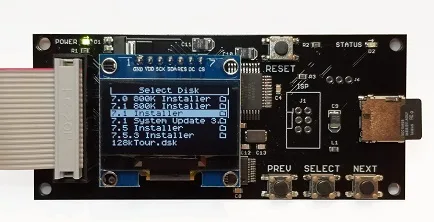
Floppy Emu is a floppy and hard disk emulator for classic Apple II, Macintosh, and Lisa computers. It uses an SD memory card and custom hardware to mimic an Apple floppy disk and drive, or an Apple hard drive. The Emu behaves exactly like a real disk drive, requiring no special software or drivers.
“Highly recommended.”
– Apple2Online
“A great device.”
– Blondihacks
“A boon for classic Mac collectors.”
– RetroMacCast
Bring new life to your old Apple computer! Floppy Emu is a specialized floppy and hard disk emulator for classic Apple computers. It uses a removable SD memory card and custom hardware to mimic an Apple floppy disk and drive, or an Apple hard drive. The Emu behaves exactly like a real disk drive, requiring no special software or drivers.
The BMOW Floppy Emu is perfect for booting your favorite games and software, or transferring files between vintage and modern machines. Just fill your SD card with disk images, plug in the Emu board, and you’ll be up and running in seconds.
Parts Sold Separately
For Apple IIc
Just For Fun
Usage Demonstration Video

Documentation
Instruction Manual and User Guide: PDF
日本語マニュアルはこちらから(2021/2/22更新): PDF
Setup Guide: PDF
Case assembly instructions: instructions
Instruction Manual and User Guide for previous generation Model B: PDF
日本語マニュアルはこちらから(2021/2/22更新): PDF
Setup Guide: PDF
Case assembly instructions: instructions
Instruction Manual and User Guide for previous generation Model B: PDF
Features
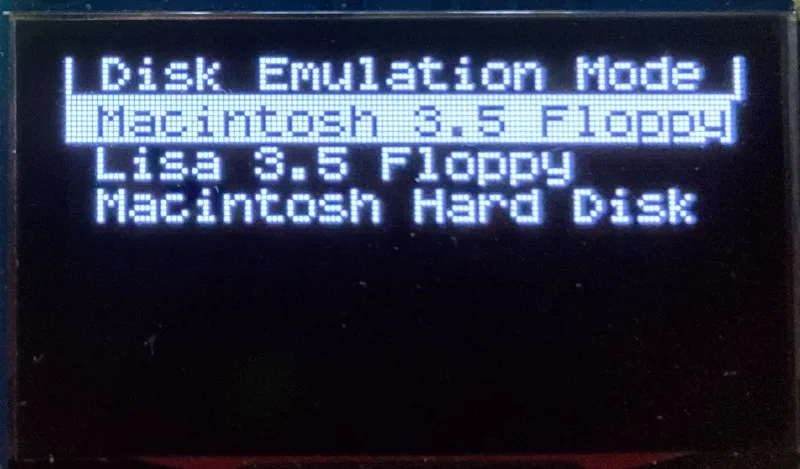
- Displays a menu UI for choosing from the disk images stored on the removable SD memory card
- Reads and writes emulated 140K, 400K, 800K, or 1.4MB floppy disk images, or hard disk images up to 2GB
- Compatible with all Apple II models, the original Macintosh 128K through the Mac II series and Power Mac, and Lisa 2
- Connects to external (DB-19 D-SUB) or internal (20 pin ribbon header) floppy drive connector
- Supports all major types of Apple disk images
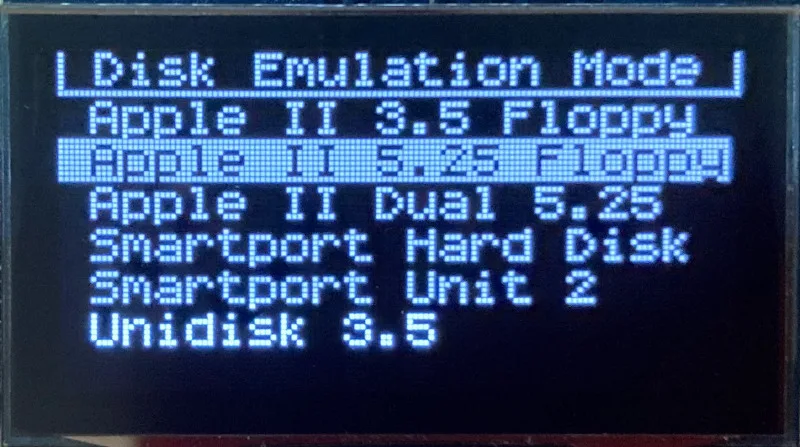
Apple II Floppy – Emulates 5.25 inch 140K floppy disks on any Apple II series system, as well as 3.5 inch 800K floppies on compatible Apple II models. An optional Dual 5.25 Floppy mode emulates two drives at the same time. Disk image files may be in .DSK, .DO, .PO, .2MG, .NIB (5.25 inch only) or .WOZ (5.25 inch only) formats. Disk images are compatible with common Apple II emulation tools such as AppleWin and Ciderpress.
Apple II Hard Disk – Emulates up to four simultaneous Smartport hard disks, each up to 32 MB (when formatted as ProDOS) or 2 GB (when formatted as HFS). Smartport disks are compatible with the Apple IIgs, Apple IIc (ROM version 0 or newer), Apple IIc+, and Apple II+ or IIe with a Yellowstone or Liron disk controller card.
For Apple II use, Floppy Emu connects to the built-in 19-pin disk connector on the Apple IIgs, IIc, and IIc+, or to a 20-pin or 19-pin connector on a separate disk controller card for other Apple II models. See the instruction manual for details on drive numbering and boot priority.
Macintosh Floppy – Supports 400K, 800K, and 1.4MB floppy disk images, in raw .dsk, Disk Copy 4.2, or MOOF formats. Disk image files are the same format as those used with popular software-based Mac emulators like Mini vMac. Compatible with the original Macintosh 128K through the Mac II series and Power Mac.
Macintosh Hard Disk / CD-ROM – HD20 hard disk / CD-ROM emulation is compatible with the Macintosh 512K, 512Ke, Plus, SE, (SE/30 when used with the Mac ROM-inator II), Classic, Classic II, Portable, IIci, IIsi, or LC I. Supports bootable hard disk / CD-ROM images up to 2GB. CD-ROMs are treated as read-only hard disks. Disk image files are compatible with other popular Mac emulators.
Lisa Floppy – Emulates 400K and 800K floppy disks on the Lisa 2/5 and 2/10. Boot or mount native Lisa Office System disk images in Disk Copy 4.2 format, or use Macintosh disk images within the MacWorks environment.
| COMPUTER | DISK EMULATION MODES |
|---|---|
| Apple II | |
| Apple II, II+, IIe with Yellowstone disk controller |  5.25 inch floppy, Dual 5.25 inch floppy, 3.5 inch floppy, Smartport hard disk, Unidisk 3.5 5.25 inch floppy, Dual 5.25 inch floppy, 3.5 inch floppy, Smartport hard disk, Unidisk 3.5 |
| Apple II, II+, IIe with standard disk controller | 5.25 inch floppy, Dual 5.25 inch floppy[1] |
| Apple II, II+, IIe with Liron disk controller | Smartport hard disk, Unidisk 3.5 |
| Apple IIc | 5.25 inch floppy[2], Dual 5.25 inch floppy[3], Smartport hard disk[4], Unidisk 3.5[4] |
| Apple IIgs, IIc+ | 5.25 inch floppy, Dual 5.25 inch floppy, 3.5 inch floppy, Smartport hard disk, Unidisk 3.5 |
| Macintosh | |
| Macintosh 128K | 3.5 inch 400K floppy |
| Macintosh 512K | 3.5 inch 400K floppy, HD20 hard disk / CD-ROM[5] |
| Macintosh 512Ke, Plus, SE | 3.5 inch 400K/800K floppy, HD20 hard disk / CD-ROM |
| SE FDHD, Classic, Classic II, Portable, IIci, IIsi | 3.5 inch 400K/800K/1.4MB floppy, HD20 hard disk / CD |
| LC [6] | 3.5 inch 400K/800K/1.4MB floppy, HD20 hard disk / CD |
| SE/30, IIcx | 3.5 inch 400K/800K/1.4MB floppy, HD20 hard disk / CD[7] |
| IIx [6] | 3.5 inch 400K/800K/1.4MB floppy, HD20 hard disk / CD[7] |
| IIfx, IIvx, IIvi, LC-II, LC-III, LC 4xx, LC 5xx, Color Classic, Color Classic II, TV, Performa, Quadra, Centris, Power Mac [6] | 3.5 inch 400K/800K/1.4MB floppy |
| Lisa | |
| Lisa 2/5 and 2/10 | 3.5 inch 400K/800K floppy |
[1] Disk II Controller Card with 20-pin connector requires Dual 5.25 Adapter for dual drives
[2] requires internal motherboard connection or Internal/External Switcher for booting 5.25 inch disks, see instructions
[3] requires Internal/External Switcher
[4] requires IIc with ROM revision 0 or newer for Smartport and Unidisk 3.5 modes, see instructions for details
[5] Mac 512K also requires a boot floppy with HD20 Init for HD20 hard disk / CD-ROM mode
[6] uses internal disk connector on the computer’s motherboard
[7] requires Mac ROM-inator II for HD20 hard disk / CD-ROM mode
Technology
Interested in how Floppy Emu works under the hood? Check out the Floppy Emu Technology Design page.
FAQ
Can I boot from an emulated floppy or hard disk?
Yes you can!
Does this require a special driver, ROM, or INIT?
No software is required for standard floppy disk emulation on any system. Apple IIc requires ROM version 0 or later for Smartport hard drives and Unidisk 3.5 drives – ROM version 255 lacks support for these. For Macintosh HD20 / CD-ROM hard disk emulation, most supported Mac models require no software, though the Mac 512K requires Apple’s HD20 Init.
What types of disk image files are supported?
Apple II supports 140K floppy disk images in .DSK, .DO, .PO, .NIB, .WOZ, or .2MG format, 800K floppy disk images in .DSK, .DO, .PO, .2MG, and DiskCopy 4.2 format, or hard disk images up to 2 GB in .PO, .2MG, or .HDV format. The maximum size of a ProDOS volume is 32 MB, so larger hard disk images must be formatted as HFS. Macintosh supports 400K, 800K, or 1.4MB floppy disk images in raw .dsk format, DiskCopy 4.2 .image format, MOOF format, or hard disk images up to 2GB in raw format. Lisa supports 400K or 800K floppy disk images in DiskCopy 4.2 format.
Can I format the emulated disk?
Yes for most drive types and disk image types. However, instead of formatting the emulated disk, it’s normally preferable to use a pre-existing blank disk image. In-system formatting of the emulated disk is supported for all Macintosh disk image types, as well as Apple II Smartport hard disks, Unidisk 3.5, WOZ disk images, and NIB disk images. Formatting performance of floppy disk images may vary depending on your SD card’s write cache behavior. For best performance, use the Blank.WOZ or Blank.MOOF sample disk images that are included with the Floppy Emu firmware.
Can I back-up old floppies using tools like Copy II Plus or Disk Copy 4.2?
Yes, with some conditions. Many disk copy programs perform a simultaneous format-and-write of the destination floppy, which may create problems (see previous answer about formatting). For best results, use a destination disk image type that supports in-system formatting. See the manual for details.
Can the Emu work with copy-protected disks?
Most copy-protected disks in WOZ or MOOF format will work with the Floppy Emu, but there are some rare exceptions. The hardware is primarily designed to work with unprotected disks using standard sector and disk formats.
Can I emulate multiple disk drives at once?
Floppy Emu can store as many disk image files as your SD card will hold. For compatible Apple II models, the hardware supports dual 5.25 inch floppy drive emulation. For Apple II Smartport hard disk emulation, up to four hard disks may be active at the same time. For other computer models and disk types, only one disk can be “inserted” in the emulated drive at any given time.
Can I connect two Floppy Emus to the same computer?
Yes, if they’re attached to separate disk ports, or to separate connectors of a dual-connector disk controller. For compatible Apple II computers, a Floppy Emu board can also be placed in a daisy chain along with other disk drives. The Emu doesn’t have a daisy-chain output port, but the optional Daisy Chainer adds one. Daisy-chaining is not supported by the Lisa or Macintosh.
How can I copy documents from an old Apple II or Mac disk to a modern PC?
Use Floppy Emu to copy the documents from the original disk onto a blank disk image residing on the SD card, then put the SD card in your PC and use a disk image utility program like CiderPress or HFVExplorer to open the disk image and extract the files. See the manual for details.
More questions?
Please see the Floppy Emu user guide for complete details and instructions.
Firmware Downloads
Floppy Emu firmware versions are available with support for Apple II, Macintosh, or Lisa computers.
Install the firmware version for the type of computer you plan to use with your Floppy Emu.
Apple II
- Apple II firmware, for Floppy Emu Model C or B, normal version: 250225A
- Apple II firmware, for Floppy Emu Model C or B, SPDC version: 250225A-SPDC what’s this?
- Apple II firmware, for Floppy Emu Model A: 250225A-ModelA
Macintosh and Lisa
- Macintosh and Lisa firmware, for all Floppy Emu models: 240209M
Older Versions (try these if the latest version gives you problems)
Apple II, Model C or B, normal version: 240208A 231213A 230712A 230218A
Apple II, Model C or B, SPDC version: 240208A-SPDC 231213A-SPDC 230712A-SPDC 230218A-SPDC
Apple II, Model A: 240208A-ModelA 231213A-ModelA 230712A-ModelA 230218A-ModelA
Macintosh/Lisa, all models: 231212M 230309M 230203M 221221M
Apple II, Model C or B, SPDC version: 240208A-SPDC 231213A-SPDC 230712A-SPDC 230218A-SPDC
Apple II, Model A: 240208A-ModelA 231213A-ModelA 230712A-ModelA 230218A-ModelA
Macintosh/Lisa, all models: 231212M 230309M 230203M 221221M
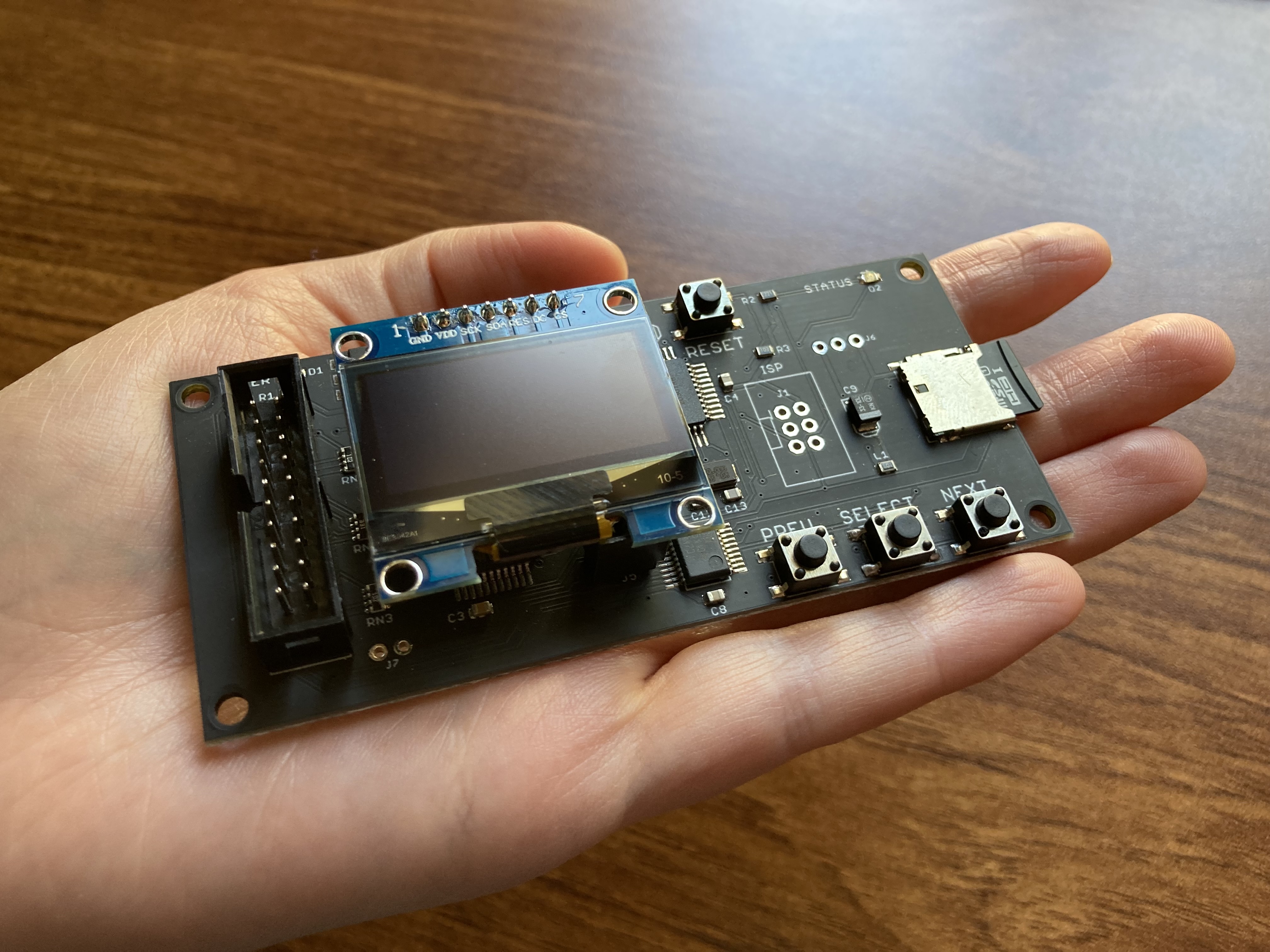
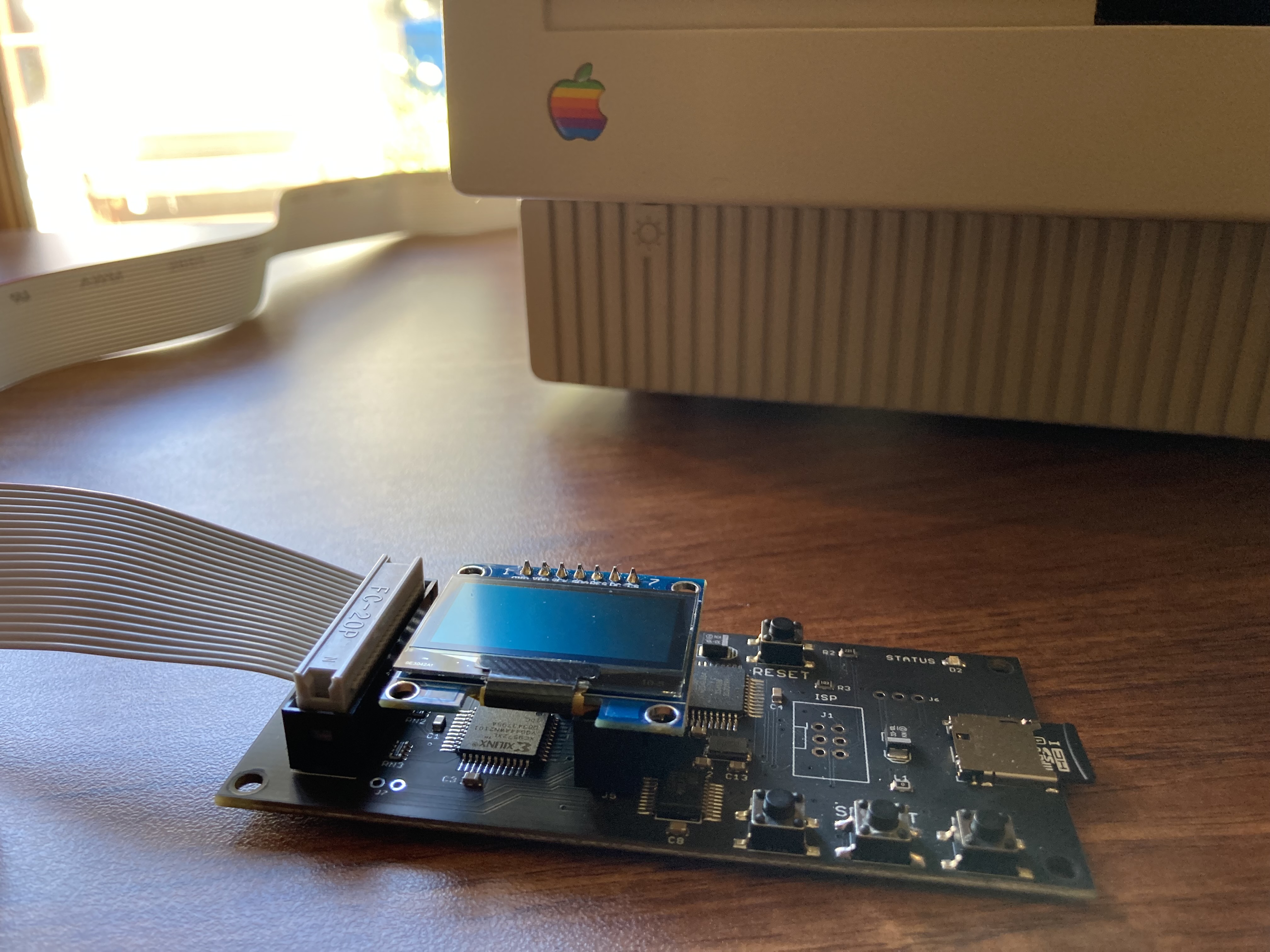
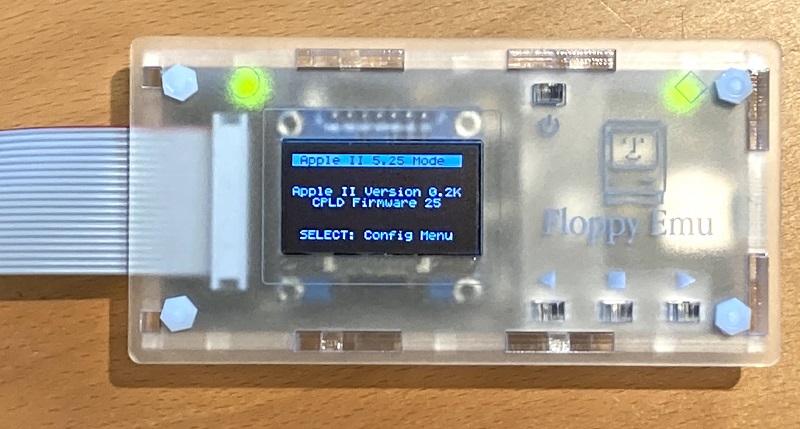
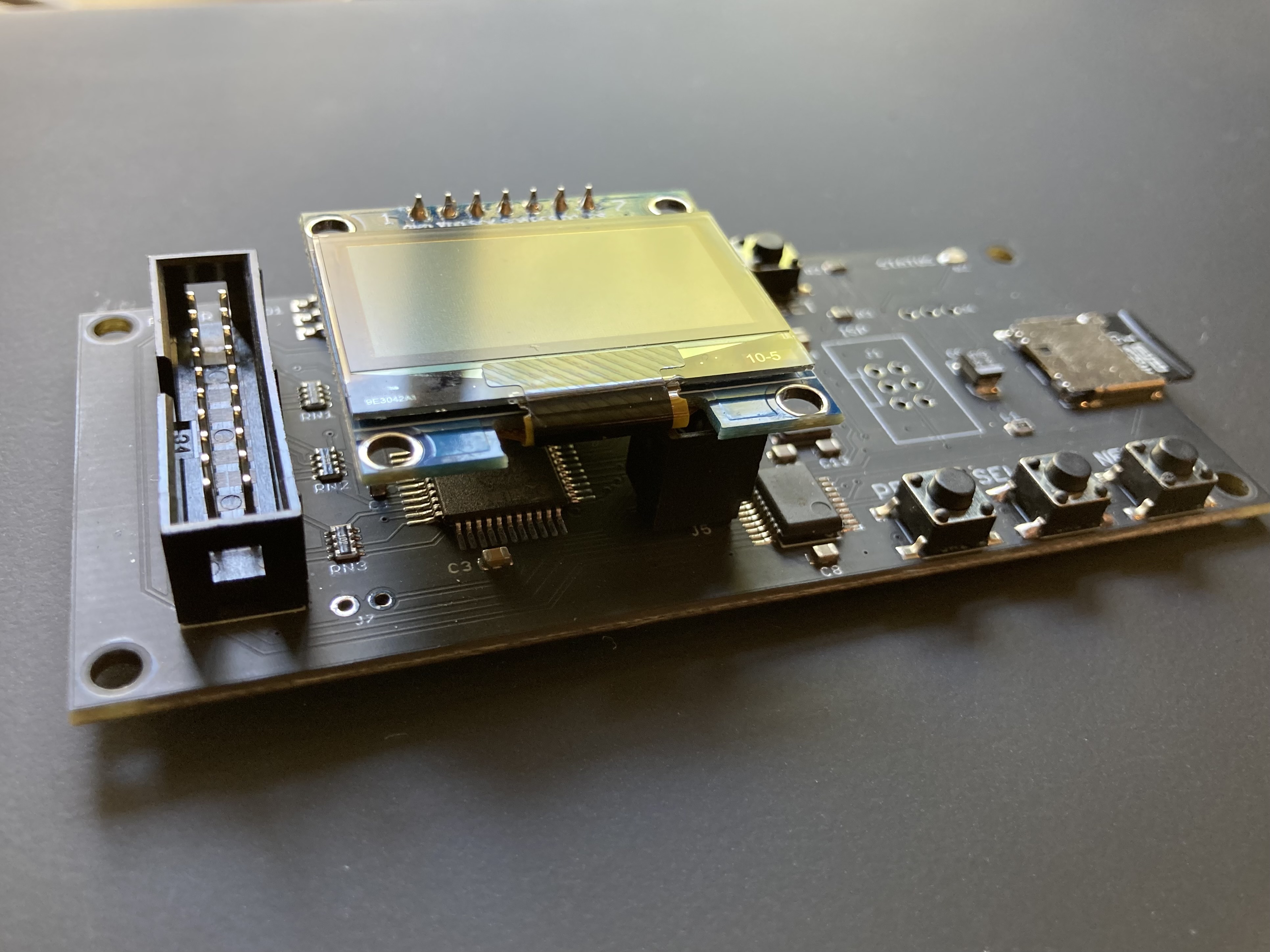

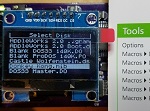
The Emu has an LCD screen and interface buttons built directly into the unit, rather than requiring a remote control gui. Please see the instruction manual and the video above for details and examples.
I was hoping for a way to connect it internally and controlling it remotely to keep a clean desktop space with the emulator board out of sight.
A new batch of Floppy Emu boards is already being made, and I expect to have them available by mid-November or earlier.
I was vague in my prior statement, I apologize. I am interested in buying a few of these for myself and friends. However, I am curious of the usability with SD cards like Verbatim FlashAir and Eyefi Wifi Lan. I am assuming since the cards themselves have the built in LAN and handle sending receiving within themselves, than the only issue is the floppy emu refreshing the display or supporting it without SD card corruption.
I’ve not tried an Eye-fi SD card myself, but yes I think you’re right. Assuming the computer isn’t actively writing to the disk image on the SD card.
Thanks Steve, I can’t wait to get one for my IIGS!
Does the Floppy emu come with latest firmware already installed or should I update it after receiving?
It comes with the latest Apple II-compatible firmware already installed. For the Mac and Lisa, or for updates, there is a simple firmware update process. See section 4 of the manual for more info.
Got this device, and it works when plugged in, although it won’t read any file unless it is a .DSK file…which I have no clue how to create; nor the manual mention it. Also there is no mention about how to create an emulated disk drive image; since it is not on the manual either; and one of the features of this device is to act like an hard drive.
I have a bunch of files as sit files that I would like to transfer, but I can’t because the mac can’t see them…it would be really appreciated to get at least the barebone info about how to set up the software on the SD card to use this device.
Beside that; excellent work.
Lou, the device is meant to act as a disk drive, so you need disk images on the SD card to make it work.
You can use CyderPress to create disk images for the SD card that can be read on the EMU.
http://a2ciderpress.com
Check out section 6.1 of the manual, which discusses working with disk images, and provides links to web sites where you can download them, as well as examples of software tools that can create/edit disk images. For the Macintosh you’ll primarily be looking at macintoshgarden.org for disk image downloads, and something like HFVExplorer or Mini vMac for creating or editing your own disk images. This applies to both floppy and hard disk images.
The “Vintage Software Collection SD Card” also includes a variety of different disk images for all supported platforms, including floppy and hard disk images, and is intended for people who just want an easy way to get started with some pre-existing disk images.
Stuffit (sit) files aren’t disk images, but are just compressed files (like a zip file). You can use one of the aforementioned tools to put the Stuffit file inside of a disk image, then mount the disk image on your Mac and you’ll see the Stuffit file along with the rest of the disk’s contents. Or you can uncompress the Stuffit file using a Macintosh emulator like Mini vMac, and then copy the uncompressed contents into a disk image for use with the Emu.
68kmla.org is a great resource if you have general questions about Macintosh retrocomputing tools and methods.
You just made my month! I’m now going to actually keep versus sell my Lisa. Thank you for all your hard work putting this together.
What is the correct terminology for the model B extension cable? I am looking to buy a shorter one but need to know the search term.
Is this what you’re looking for? https://www.digikey.com/product-detail/en/assmann-wsw-components/H3CCH-2036G/H3CCH-2036G-ND/999352
Is there really a company called “Assmann”? Does Kramer work there?
LOL
https://www.digikey.com/en/supplier-centers/a/assmann-wsw-components
Neat product! A good way to keep old computers still usable. Plan to get one at some point.
If and when you have a sale, i will get one! but even if you don’t, i’m still gonna consider getting one! This is an amazing thing because the floppy drives on my Macintosh Classic are failing, and I also want to update both of them to system 7.5.5.
Why is the B alot more expensive than the A? Cant we go back to the cheaper version?
I think you’re looking at the “closeout” price of the Model A, from when the remaining inventory was sold at a big discount. The Model B is the same price as the Model A + Universal Adapter pair that it replaces.
Ah ok. Can we have the ability to switch between different HD20 images?
Yes, that already exists. Just follow the menu prompts on the Emu’s LCD when you’re in hard disk (HD20) mode.
I’ve thousands of WORD and Excel files of my PhD thesis and later papers/articles, of the the period 1988/2000, on my Mac SE, mainly on external iomega Zip Drive Disks, and fewer files are as well stored in compressed state on the Mac SE Hard Disk (and compressing/decompressing functions of the initially used software still works fine as well as WORD and EXCEL, on my Mac SE).
I’ve recently bought your product through my courageous son in the States. Hope to find most or all of my files intact after all these years on the iomega disks. I run my Mac SE, it works fine. I loved this great machine and worked on it for about 12 years before I finally shifted to PC laptops running under Windows mainly due to the exaggerated huge prices that Apple Computers applies to it machines and I cannot afford anymore by the start of the 21st Century after I’ve had purchased my Apple IIgs and Mac SE after 28-26 years ago when I was resident in France and had a much higher income than in Egypt.
There was a problem of an electric spark produced when launching the Mac SE machine with the on/off button, however, the problem was fixed few days ago, i.e. by late Dec 2016, by a genuine local technician in Cairo, Egypt, who has changed the internal switch of the Mac SE on/off button.
Now, everything is ready to connect my Zip drive to see in what condition are my files on the iomega Zip drive disks. I wonder if I can connect your product and the iomega to my Mac SE at the same time before booting the Mac SE. Please, confirm that this type of double connection to the SCSI ports of Mac SE is possible at no risk. Thank you. My final goal it to transfer my file to a recent Mac (of a friend) and then to my recent PC laptop running under windows.
Thanks a lot.
Dr. Fahmy
Cairo
Egypt
I think your product by all measures is a great one of its category, if not the unique, easy and useful one to use. I’m completely astonished that Apple Computer doesn’t make use of your product to help its old costumers recover their old files stored on vintage Macs to new Macs instead of simply saying to them that their old machines are obsolete/vintage and not covered by any service from Apple worldwide. A great manufacturer can never say such thing or proclaiming he is not responsible of his own old machines, this is a big shame and a unbelievable violent pity action to those who participated in building the wealth of Apple Computer at its early years.
Hopefully, there are great engineers, like you Sir, to save the aged folk, like me, and the World.
Thanks a lot.
Dr. Fahmy
Cairo
Egypt
The Floppy Emu connects to the 19-pin disk port, not the SCSI port (25 pin). So you could connect both the Emu and your Iomega drive at the same time if you wish.
Wow, I’ve read through ALL the posted feedback (and boy are my arms tired)
Was hoping to find people sharing their pimped out hard disk images. I long to return to the days when my Mac Plus had flying toasters, the “moose” and made a barfing noise when you ejected a disk… I know that if I search carefully, all that can be obtained separately but I have to believe that people have created hard disk images that probably do most if not more of that with games and apps to boot.
Is anyone sharing? (For fun not profit) links?
@ Mark Wolfe, for Macintosh software, most people just download everything they need from Macintosh Garden.
@Techknight, a note about the ability to switch between different HD20 images: I added that feature many months ago in firmware hd20-0.7F-F14.5, but I just discovered that I never updated the link on this page to point to the new firmware. Doh! It’s now updated.
Hey, this thing is amazing. Great job! I have 2 old mac classic’s and I can’t wait to buy this!
Steve, I’ve got a question, would wireless web control capabilities be possible with something like the Toshiba FlashAir? Similar to the way UNISDISK is? http://tulip-house.ddo.jp/digital/UNISDISKAIR/index.html
Although, having switched to the MicroSD format, I guess if possible, it would only be on the A versions…
Hi, is there a way to format and mount a 1600kb file on the emulator ?
i do have such file for a specific machine, recognised as a “akai 1600kb” at the end its a OS file for a aligner machine
thanks
A WiFi-enabled SD card like the Eye-Fi or Toshiba FlashAir should work, though I’ve never tried it myself.
The Emu is designed specifically for vintage Apple computer disk emulation (Macintosh, Apple II, and Lisa). For industrial equipment, you can probably use a PC-centric floppy disk emulator like HxC Floppy.
Hi Steve,
I am trying to use the EMU floopy drive emulator to install Mac OS 7.5.3 on my Macintosh SE. Somehow the SE does not recognize 1.4 Mb disk images and wants me to reformat to 0.8 Mb. Is there a way to have the SE recognize the 1.4Mb disk images?
Thank you.
Apple introduced 1440K floppy support with the Mac SE FDHD and newer machines. If you have the original Mac SE, it will be limited to using 400K and 800K floppy disks and disk images. You could use the Emu in Hard Disk Mode with your SE, and load OS that way. Or stick with System 7.1, which comes on 800K floppies and which will probably be more usable on an SE anyway.
Hi Steve,
I\’am using the floppy Emu B with my Mac SE/30s. On one of them it\’s working without a problem. On the other one it is only working on the interanl floppy port. On the external port there is no reaction – no power no display. I think it\’s all ok with the Floppy Emu and the problem is on the mainboard? Any idea?
Thanks
Gerhard
If the external floppy port isn’t even getting power, then you have a damaged logic board. You could use a multimeter to trace the connections to the external port, and try to identify what’s broken. A repair service like http://maccaps.com/MacCaps/Repair_Service.html may also be able to help.
Hello, i have a floppy emu version A with universal adapter for my apple iigs, all it was ok but this morning, the 2gs don’t boot on .2mg or .p , only boot with .dsk.
You you known the problem. I already try to put the firmware.
Thank
@fouasson, that might be due to using the wrong emulation mode maybe. Please send me email with the details, and I can help troubleshoot what’s going wrong.
Hi, i’m in Canada, and i’m wondering, how long would it take to reach me? (estimated)
For Canada, 4-5 days shipping time is typical.
Loving this Emu, it’s done absolute wonders for my old Macs. However, i’m stuck using the .IMG files that are pre-loaded as there seems to be few (if any) websites that offer the images as direct downloads (or atleast .IMG types that are already loaded). They all seem to be .SIT files which are nothing short of a pain in the bum to extract in Windows. Though I can do it and when you manage to, you are left with the files but still the problem of somehow putting them files onto a floppy image that are the same type that the Emu accepts and are pre-loaded.
The manual is a good start but I am still scratching my head as to how I can make some from the .SIT files you download (Eg. from Macintosh Garden), extracted or not. Is it possible in Windows 7? If so is there a tutorial on how because Google hasn’t given me a proper solution as of yet.
Thanks in advance.
I don’t have a tutorial on Stuffit, sorry. Section 6.1 of the Emu manual has some suggestions for tools you can use to view and edit the contents of disk images, or make new disk images. There’s also some general info here on the use of StuffIt, Macintosh disk images, and their use in emulators that you may find useful: http://www.gryphel.com/c/image/
I try to avoid software that comes in a StuffIt archive, since as you’ve discovered it’s often a pain. Many items on Macintosh Garden are available in several different forms: as a StuffIt archive, as a set of disk images, etc. Check the list of download links and try to find one that’s a disk image. If you must convert a StuffIt archive, do it on a vintage Mac or a Mac emulator like Mini vMac. Uncompressing the stuffit archive on a Windows machine will lose the resource fork and type/creator signatures.
How to use this Floppy EMU to copy files of interest from the HD of Mac SE (that works well up to present day) to a new machine (e.g. Mac desktop/Mac laptop)? I have a wealth of old Word and Excel files that are stored since years on the HD of my old Mac SE (they are in good condition) and I need to transfer these files to a newer Mac (as a preliminary basic step before finally transferring them to a recent Windows laptop). The local Apple Macintosh vendor shops refused to do do that job for me. Thank you for reporting the required steps in some details (if possible without referring me to the EMU Instruction Manual that stays somewhat obscure for me). I understand that I must first insert the SD into the EMU, second I plug the EMU into the rear 19 pin slot of the Mac SE, third I’ll start the Mac SE. At this point, the Mac will turn on, and the EMU will work. What to do next in order to copy the files of interest from the HD of the Mac SE to the SD on the EMU? Is this to be done simply by dragging the files of interest to the SD of the EMU using the Mac SE Finder, or I’ve do something else? My son has bought the EMU complete (including the Floppy Emu Model B, the Frosted Ice Acrylic Case “assembled”, the Vintage Apple Software Collection SD Card, the Full-Size SD Adapter, and the Disk Extension Cable) and send that whole nice package (ready to be used) to me. However, I didn’t use that package yet.
I think it will be clearer once you have the hardware. Yes, you would copy the files to a blank disk image on the SD card. Then you would put the SD card in your Windows laptop, and use HFVExplorer (or one of the other tools described in section 6.1 of the manual) to open the disk image on the SD card and copy out the files. If you need general tutorials on using vintage Mac systems with emulators and disk images, vintage file format conversions, etc, I recommend asking for help in the discussion forums of enthusiast web sites like 68kmla.org and thinkclassic.org.
Does the floppy emu have built-in Macintosh support or do you have to install the firmware after?
Please see step 1 of the quickstart guide included with the hardware, and section 4 of the manual for additional details. There’s one firmware that provides Apple II disk emulation, and a separate one that provides Mac and Lisa disk emulation.
Yesterday I got my Floppy Emu and I’ve got to say, it’s an AMAZING piece of tech, glad to have gotten my hands on one!. And good timing too, the day I got it, my Mac Plus’s internal drive kicked the bucket.
One question though, and it’s about the HD20 emulation mode. I can never seem to get it to work. On bootup, the Macintosh becomes unresponsive and the Emu seems to freeze up as well, though when changing the HD20 disk it works fine. But the Mac still would not boot from it, nor would it be mounted when I had a system disk in the floppy drive, it would just freeze once Finder loaded. I’ve tried updating the firmware on the Emu and have tried multiple different images for the HD20, all of which work in Mini vMac, so it’s not a unreadable disk.
The only thing upgraded to this Plus is 4MB of RAM and the Brainstorm Accelerator, seeing as it seems to work for other Plus users, I would assume the Accelerator has something to do with it, but I do not want to go inside and start removing the whole CPU to check.
Sadly it seems that compact Macintosh (Plus, SE) accelerators don’t play nicely with HD20 disks. If you scroll up in the comments, you’ll see another past report very similar to yours. Perhaps the HD20 routines in the Mac ROM used fixed delays that are affected by the accelerator – just a guess.
@Steve
Ah, alright, guess I’ll be looking into how to disable the accelerator, I’d rather sacrifice performance for HD20 emulation, and hopefully, the uninstall is easy enough if I ever need it again I can.
Any chance you could combine the apple ii and mac modes into one super firmware? I use the device between many machines. Would be really handy! 😉
You may forgive me for my multiple questions before physically using the emu to transfer files from my Mac SE to another computer.
First: Should I use Ciderpress utility to create blank floppy (or blank HD) volume on the SD of the emu (using a Windows machine) before I insert the SD in the emu board that will be connected to the Mac SE, or the SD shipped with the emu board has already such blank volumes installed on it?
Second: I read somewhere in the instructions an alarm on running the emu board under the Apple II mode while the emu is inserted in a Mac machine (since this may damage the emu or the computer). Is this alarm not relevant to a “new emu”, i.e. the “new emu” will run smoothly with the Mac SE as if it has never been run with Apple II machine?
Third: I sincerely hope that you would have some free time to make a YouTube video that will show the users how to transfer files from the Mac to the emu SD. Your previous YouTube videos concentrate on running games or software on the Apple II or APPLE IIGS using the emu board.
Thank you for your reply, and again forgive my basic questions.
1) There are some blank Mac disk images on SD card, and you can use HFV Explorer to create more if desired. Ciderpress is for Apple II disk images, HFV Explorer is for Mac disk images. Please see section 8 of the manual.
2) The warning you’re referring to is specific to the older Model A and does not apply to the Model B. You will need to download and install the alternate Mac firmware, as discussed in the manual.
3) Floppy Emu functions just like a real external disk drive, so you can copy files to/from it just as you would any other disk. If you haven’t yet actually used the hardware, please wait until you have. If you need general tutorials on vintage Mac usage, like how to copy a file, I recommend asking for help in the discussion forums of vintage Macintosh enthusiast web sites like 68kmla.org and thinkclassic.org. I can only provide support specific to the Emu hardware, sorry.
I have an iMac g3 from 2000 running mac os 9 and i also have disk copy installed on it. when I try to make a blank floppy disk image on disk copy, it works and i can transfer games and files onto the blank floppy disk image and then put them on the sd card. However, when i try to load that disk copy image off of the emu, it just says “file not contiguous”. Can you please help me?
Easiest way to fix that is to copy all the files off of the card onto your computer, then erase the card, and copy the files back over there. That will put them in contiguous order. There may have been one in the middle that got deleted and another file went in and partially wrote over that space and then had to go to another area of the card to finish writing, thus it’s not contiguous.
Ok, the problem was the contents of the disk image was in a folder and I needed to take all the programs out of the folder, then put them in the disk image. Sadly I was not able to get mini vmac working on my Macintosh Classic, because it requires 5mb of memory and the Classic only has 4mb. I knew that wasn’t gonna work……
I followed the instructions for the copying the two updating firmware files to the SD on my Windows laptop, and made the correct connection of the emu to the Mac SE and started the emu firmware update.
The first part of the firmware update run smoothly (and the LCD displayed “RESULT: SUCCESS”).
However, the the second part (by holding down the SELECT and PREV buttons, and pressing/releasing the RESET button) didn’t started the AVR microcontroller firmware update.
Instead the display of the LCD became permanently hanging at the display (wrong CPLD 14 ! = $).
I shut down Mac SE, and when launching it again the emu LCD was still hanging at that same wrong message.
I shut down to wait for kind help from your side as I do not know what should I do at this point.
Thanks.