

Floppy Emu Update: Odds and Ends
Here’s one more firmware update for the BMOW Floppy Emu disk emulator for classic Apple computers. This update resolves some minor problems and inconsistencies that were discovered in the previous version, but don’t get too excited because it’s all small stuff.
Macintosh/Lisa
- Fixed a bug that broke the display type setting when selecting a Macintosh Hard Disk image
Apple II
- Back-ported the past year’s worth of updates to the Floppy Emu Model A
- Added a new start-up screen for the LCD display on the Model A and Model B
- Fixed more bugs that could prevent firmware updates from completing successfully when Emu is in Smartport mode
- Implemented a buffer overflow check for non-standard WOZ disk images (max size is 9216 bytes per track)
- ProDOS volume names are now displayed for raw disk images whenever possible, in addition to the disk image name
Download the latest Floppy Emu firmware from the project page, or buy a new Floppy Emu Model C at the BMOW Store.
Read 2 comments and join the conversationFloppy Emu: New Smartport UI and Settings Menu
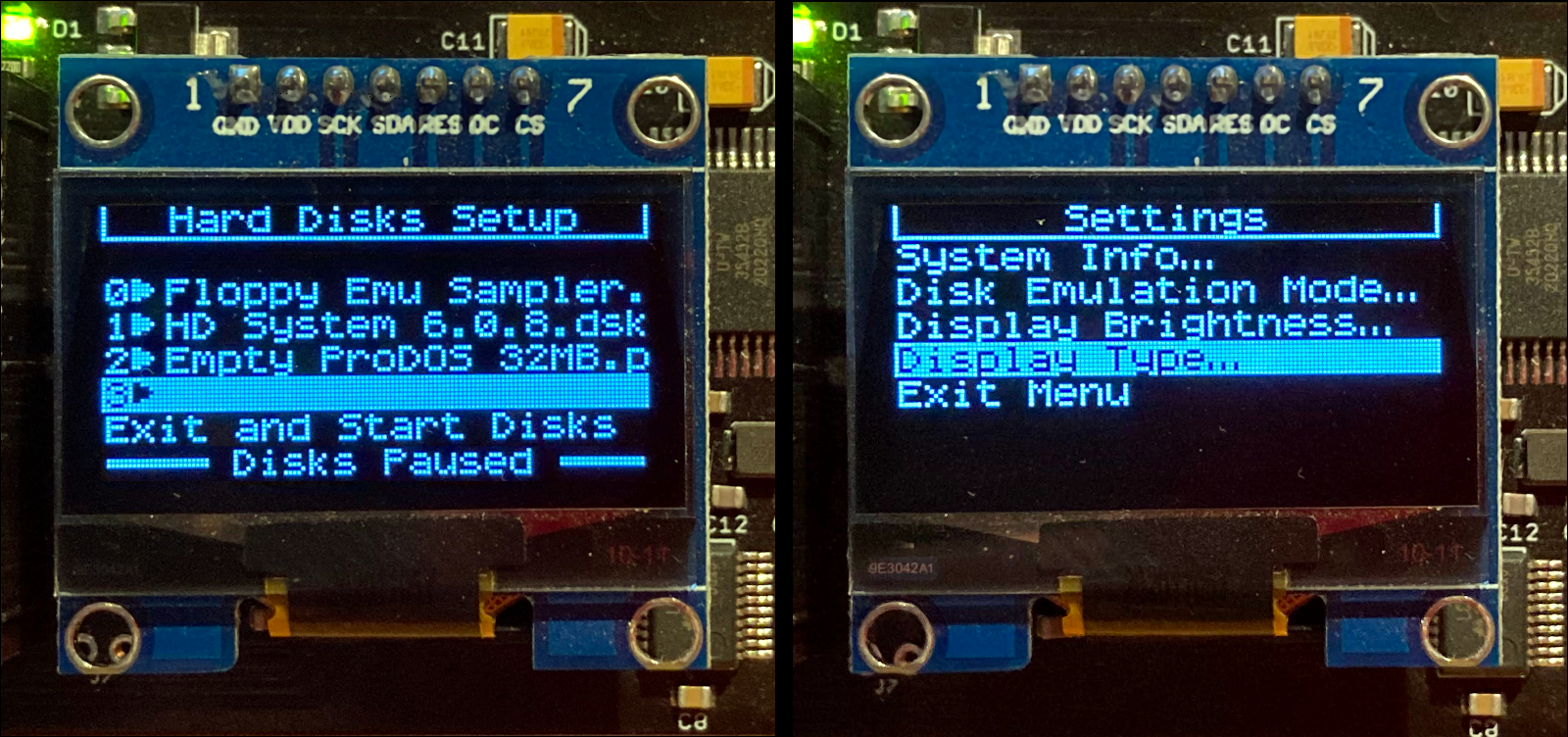
I’m squeezing in one more big firmware update for the BMOW Floppy Emu disk emulator before the Thanksgiving break. This update brings a major improvement for Smartport hard disk selection and management, as well as a new settings menu that combines all of the Floppy Emu’s various user preferences. Based on the suggestions and questions I’ve received in the past, I think this update is going to make a lot of people happy.
Disk Image Selection UI for Smartport Hard Disks
For Apple II computers, Floppy Emu offers a Smartport hard disk emulation mode, providing up to four simultaneously-available hard disks to your computer. Today’s firmware update introduces a new UI for dynamically managing and selecting the desired disk images, entirely within the Floppy Emu menus, and without needing to rename any files on the SD card. After pressing a button to pause the Smartport disk emulation, a setup screen appears. For each of the four hard disk slots, you can view or change the associated disk image, or remove the disk image and leave the slot empty. Disk images are selected through the the same file browser menus as in other emulation modes.
It sounds simple, it was a bit of a bear to implement, but it was worth it. The new interface is a much more flexible and intuitive way of configuring Smartport hard disks, and it’s no longer necessary to name or rename the disk images using a fixed naming convention like smart0-gsos-6.0.2.po.
System Settings Menu
This update also introduces a new system settings menu for all Macintosh, Lisa, and Apple II firmware versions. Press SELECT when prompted during Floppy Emu’s startup, and you’ll arrive at this new top-level menu. From here you can change the current emulation mode, adjust the display type and brightness, view software version information, and more. This menu replaces the scattered settings interfaces that existed before, each requiring a different hard-to-remember button combination to reach.
The Jumbo OLED option that appears in the settings menu is for a 2.4 inch display that was previously discussed in 2019. A few people have since built custom Floppy Emu enclosures using this OLED, but the standard firmware doesn’t work quite right with it: text and images appear shifted two pixels out of position. Beginning today, the jumbo OLED is graduating from a fun experiment into an officially-supported option, and changing the display type to jumbo adjusts the image position as need.
Update Now
Download the latest Floppy Emu firmware from the project page, or buy a new Floppy Emu Model C at the BMOW Store.
I’ve also prepared this video demo of the new one-step process for firmware updates, which was introduced last week.
Read 15 comments and join the conversationFloppy Emu Update: UI Goodies and More
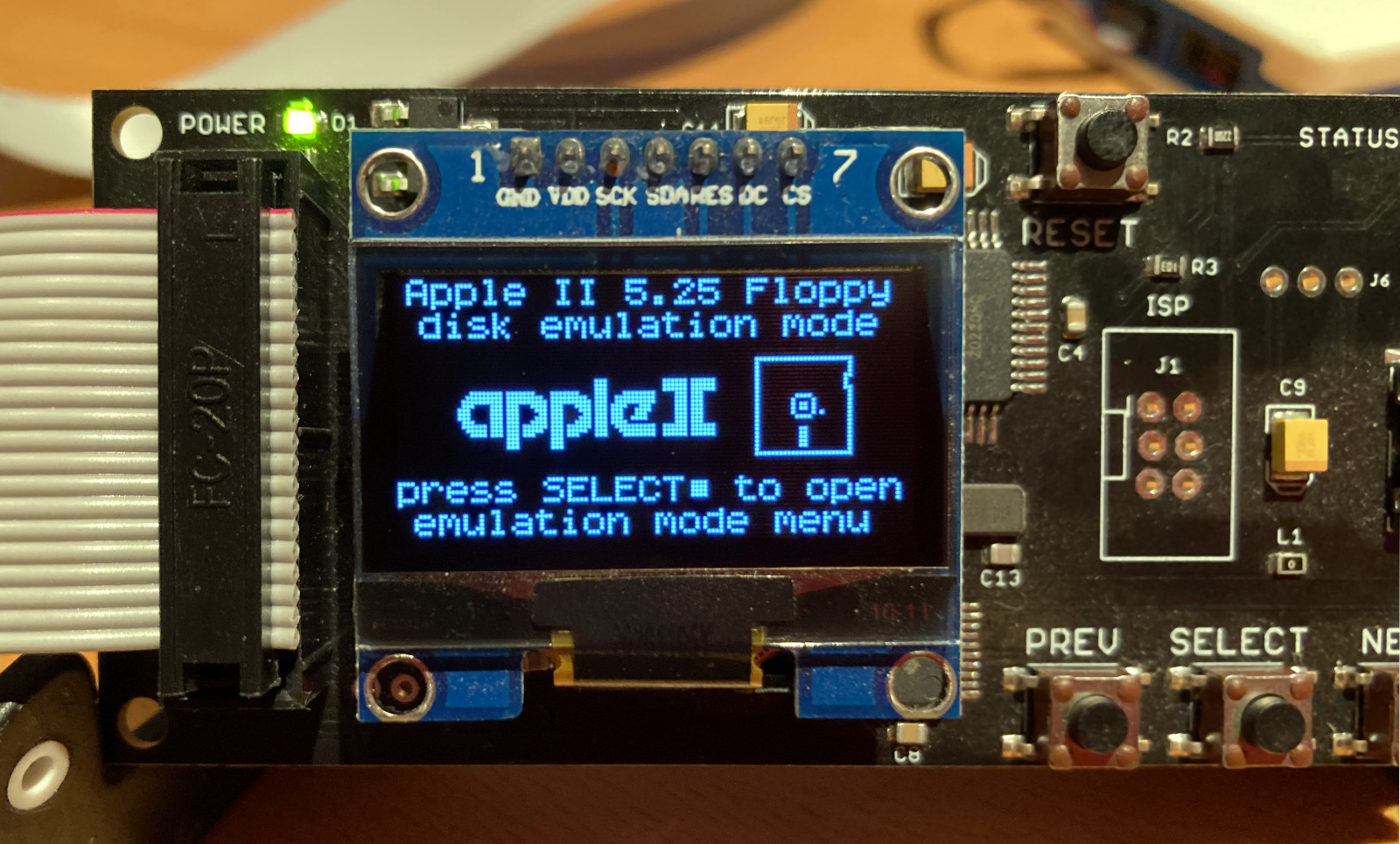
Please enjoy this new update for the BMOW Floppy Emu disk emulator as we head into the Thanksgiving holiday week. The new firmware brings a UI refresh, scrolling of long filenames, bug fixes, performance tweaks, a couple of new disk formats, and a simplified naming scheme and update process. I think you’re going to like it. Here’s a look at what’s changed.
UI Graphics Galore
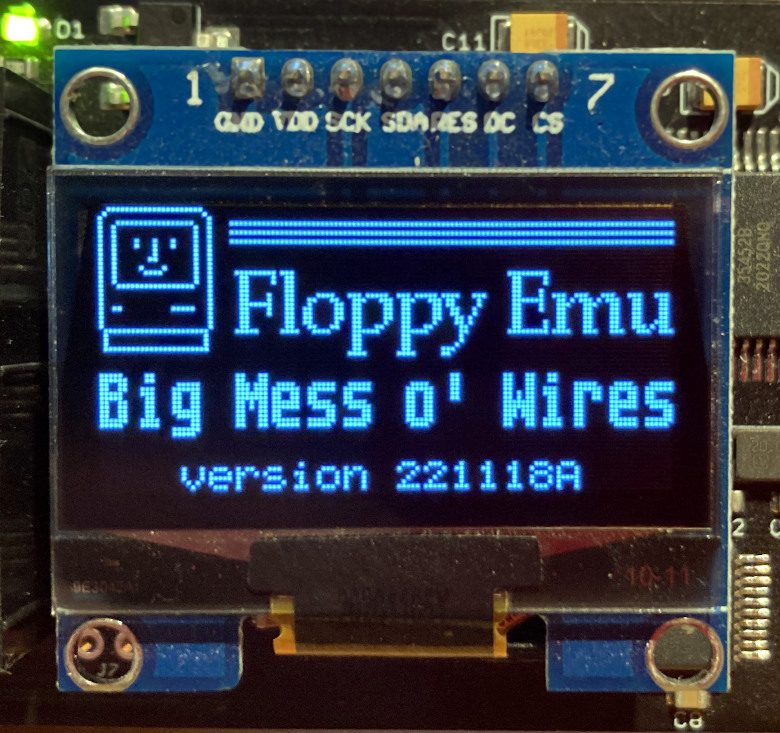
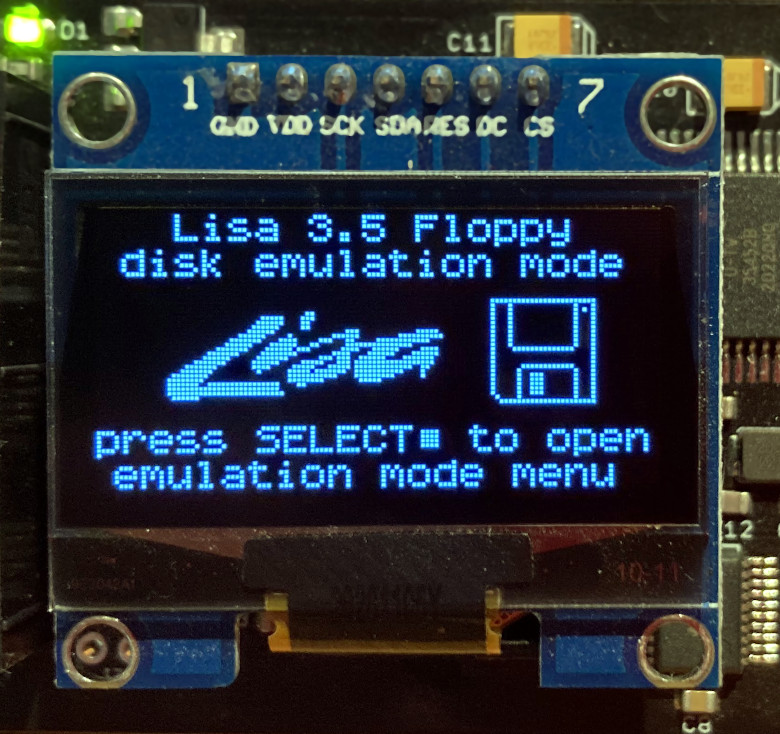
For the Floppy Emu Model C, the user interface has been overhauled to take better advantage of the extra display resolution (compared to the previous generation of hardware). There’s a new start-up screen to replace the old smiley-face, and improvements to how the current emulation mode is displayed. I sometimes hear from customers who are confused about which disk emulation mode they’ve chosen, or how to change the emulation mode, and this UI should help with both. The active emulation mode is now displayed in both text and graphics during startup, along with a prompt “press SELECT to open emulation mode menu”. If you can’t remember that you chose Lisa 3.5 inch floppy disk emulation, now you’ll see a bitmapped Lisa logo and a 3.5 inch disk icon. All of the references to the PREV, SELECT, and NEXT buttons have also been enhanced with triangle and square icons to match the legend on the Emu’s acrylic case. It looks slick.

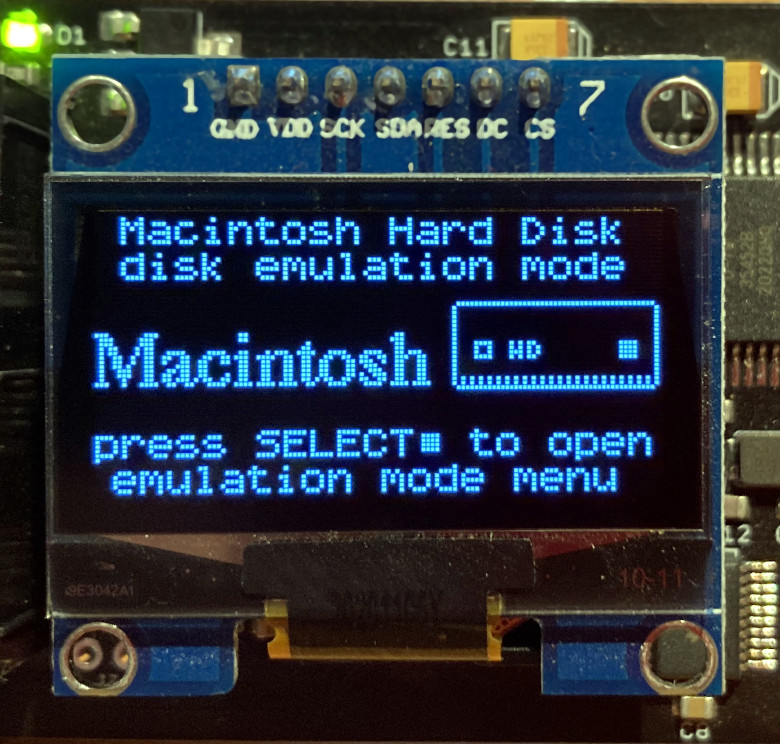
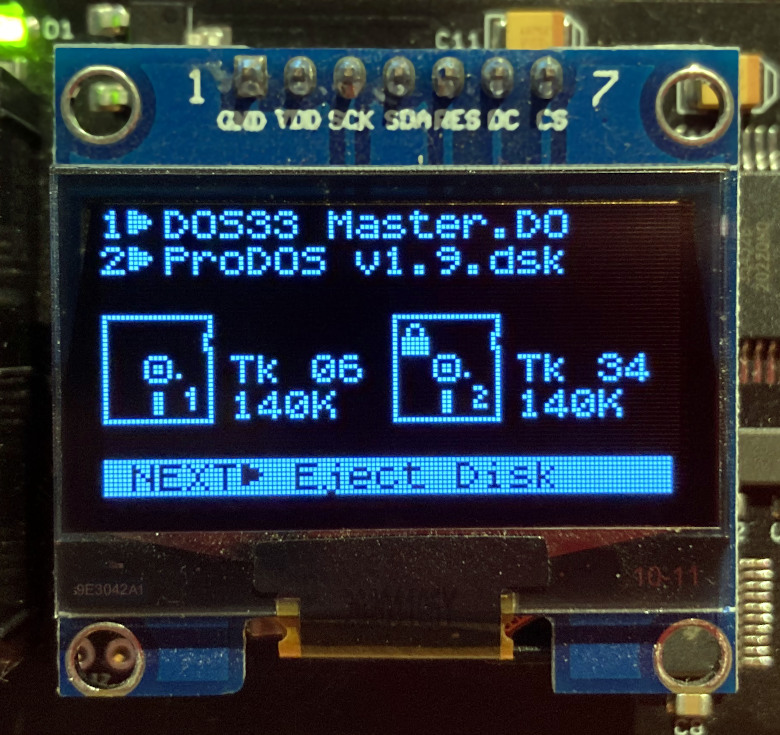
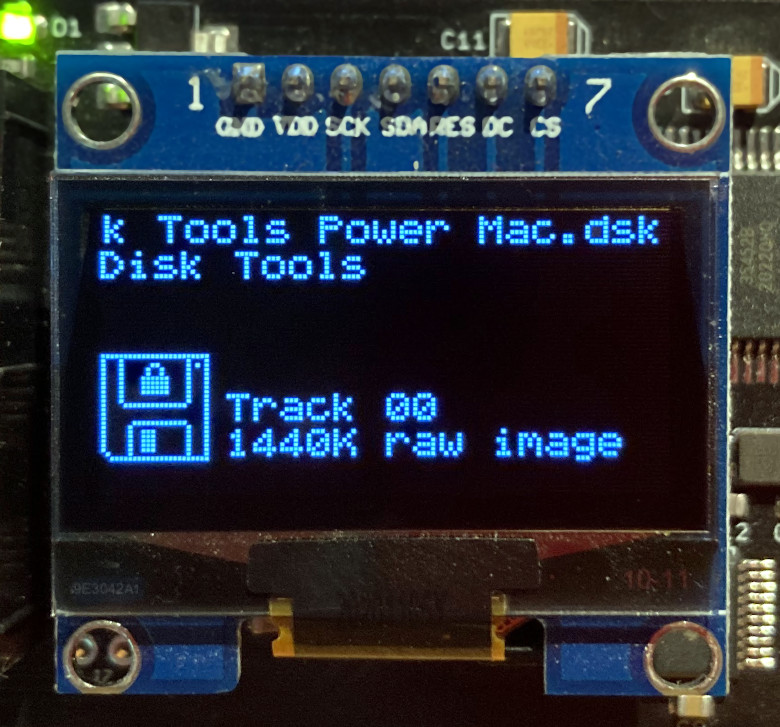
The new UI extends to the main disk emulation display as well. You’ll see one or two icons depicting the types of disks that Floppy Emu is currently emulating. Read-only disks are displayed with a padlocked icon, and in Dual 5.25 Inch Floppy mode the icons are also numbered for Drive 1 and Drive 2. It may be eye candy, but it’s so much better than boring text.
Long Filename Scrolling and Size Display
Do you have a file or directory name that’s too long to fit the Floppy Emu’s display? The new firmware also implements filename scrolling in the menus and disk emulation screens. It’s hard to capture in a photo, but it’s a smooth pixel-by-pixel scrolling and it looks great. This features was suggested several times in the past, but I used to believe it wasn’t necessary. The firmware truncates long filenames by omitting the middle section, rather than the end, so “Welcome Aboard – Disk 1, Size A.woz” becomes “Welcome Aboard ..de A”. That’s enough to tell apart side A, B, and C, but now that I’ve seen filename scrolling in action, I have to admit it’s much nicer. The original method is still used when you’re quickly scrolling through a menu listing, but if you pause for a second, the highlighted menu entry begins to scroll and reveal the full name of the file or directory.
For technical reasons, long filename scrolling isn’t available for Unidisk 3.5 disk emulation. Whomp whomp.
Filename scrolling also creates an opportunity to show more information about the highlighted item in disk selection menus. If Floppy Emu recognizes the disk image as a supported type, it’ll show the size/type as a suffix on the filename, right in the menu! Imagine you’ve got your Floppy Emu connected to a Macintosh Plus, which supports 400K and 800K floppies only. If you scroll through a directory listing and see “Stuffit Expander 5.5.dsk 1440K” then you’ll immediately know the Mac Plus can’t read it. With the earlier firmware, you had to guess at this, and try inserting the disk before you could learn its size and type.
Bug Fixes and Enhancements
The new Apple II firmware fixes a rare bug that occurred when Dual 5.25 Floppy mode was used with a Yellowstone universal disk controller card, and Drive 2 was empty. Why would you run Dual 5.25 Floppy mode but leave one of the drives empty? I don’t know, but it’s fixed now.
For Macintosh/Lisa users, menu scrolling and alphabetic sorting have been sped up to match the behavior of the Apple II firmware. There are also three new floppy disk type variations, which I’m calling Small 400K, Small 800K, and Small 1440K. These are standard raw floppy disk images, except instead of filling empty sectors with zeros at the end of the disk image, the image file is simply truncated. You might recognize these as a disk image like “Tools.dsk” that’s 717K instead of 800K. It’s rare, but I’ve run across a few examples.
New Firmware System
The final change is the one I’m most excited about: an all-new system for naming and applying firmware updates. Before now the firmware versions had complex names like “Mac-Lisa-0.8H-F15”, which made sense to me but confused everybody else. The firmware was also distributed as two separate data files, one for the AVR microcontroller chip and another for the CPLD logic chip, and both parts needed to be installed separately.
No more. Beginning with this version, I’m moving to a simplified naming scheme using the date in YYMMDD format, with an A or M suffix to indicate the Apple II or Macintosh/Lisa version of the firmware. I’ve also merged the two data files into a single unified file, requiring only a single step to perform the update. If you’re familiar with the old update process, make sure to view the README file since the process has changed. Behind the scenes the AVR can now detect when it’s just been updated, and it automatically unpacks and applies the CPLD update too. I should have done this years ago.
Download the latest Floppy Emu firmware from the project page, or buy a new Floppy Emu Model C at the BMOW Store.
Read 2 comments and join the conversationNoisy Disk 5.25 Inch Mechanical Sound Maker
The Noisy Disk is back in stock at the BMOW store, after a manufacturing delay. Do you miss the iconic sounds of mechanical click-clacking from original Apple II floppy drives? Does the familiar rattling of a boot floppy bring a smile to your face? This board uses a mechanical relay to create authentic-sounding disk head movements for the BMOW Floppy Emu disk emulator. Sure it’s useless, but it’s useless fun.
The Noisy Disk board attaches inline with your existing Floppy Emu cable. When Floppy Emu is configured to emulate a 5.25 inch Apple II floppy drive, the Noisy Disk onboard relay snaps open and shut whenever the emulated disk steps from one track to the next. It creates a symphony of disk noise that will bring back memories of 1979.
Noisy Disk is available now at the BMOW Store.
Read 2 comments and join the conversationFloppy Emu Update: Multi-Disk Fix
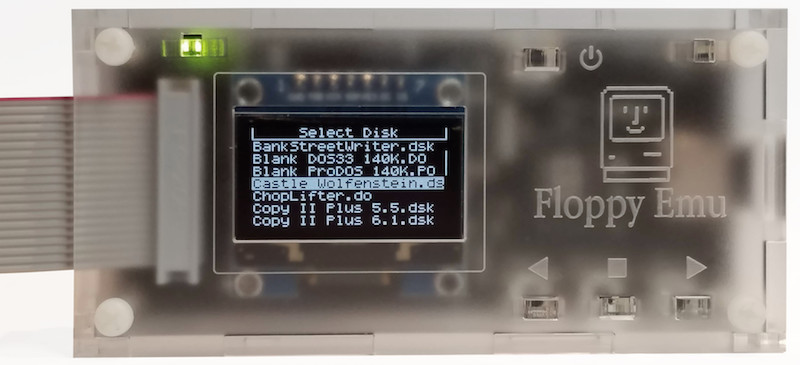
There’s a new Apple II firmware update for the BMOW Floppy Emu Disk Emulator. This update makes a small but important change to the emulated drive behavior after a disk is ejected. The current track number and other drive state is now maintained even after a disk is ejected, and is applied to the next disk that’s inserted, instead of resetting the state to defaults. A few multi-disk Apple II games appear to rely on this behavior, including Captain Goodnight, which otherwise would fail after the insertion of side B. The new firmware is version 0.2W-F33 and 0.2W-F34. You can download the latest Floppy Emu firmware from the project home page.
Be the first to comment!Yellowstone Firmware 221024, Total Replay and Reset
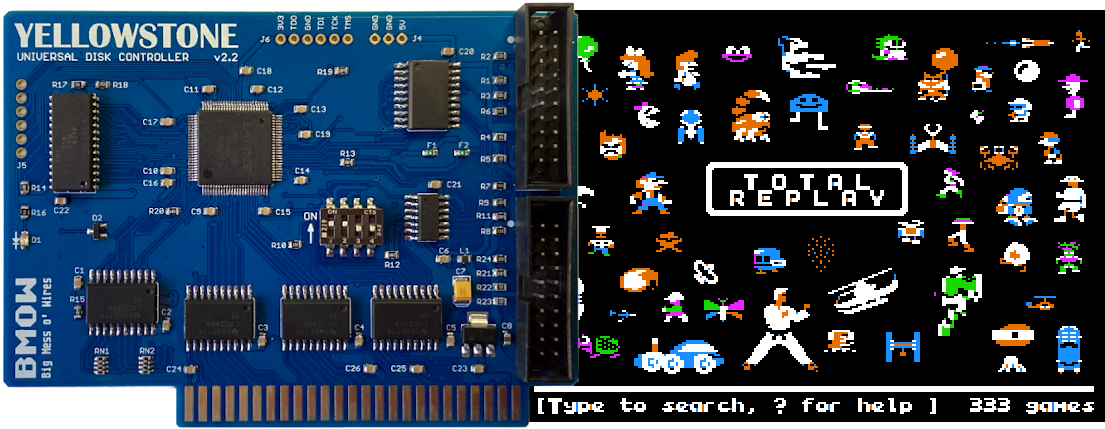
Firmware version 221024 is now available for the Yellowstone Universal Disk Controller for Apple II. This is the first new firmware since Yellowstone was released, and it fixes two unrelated problems with reset handling and with the NMOS version of the 6502 CPU. The reset handling issue could cause disk I/O to stop working after pressing Control-Reset (not Control-Apple-Reset like is frequently used to reboot an Apple II). The Total Replay collection of games also exposed a subtle problem with Yellowstone on the NMOS 6502, which is used in the unenhanced Apple IIe and the Apple II+, causing Total Replay to freeze during startup on these computers. Firmware 221024 resolves both issues. You can download the latest Yellowstone firmware from the project home page.
Yellowstone is a universal disk controller card for Apple II computers. It supports nearly every type of Apple disk drive ever made, including standard 3.5 inch drives, 5.25 inch drives, smart drives like the Unidisk 3.5 and the BMOW Floppy Emu’s smartport hard disk, and even Macintosh 3.5 inch drives. Yellowstone combines the power of an Apple 3.5 Disk Controller Card, a standard 5.25 inch (Disk II) controller card, the Apple Liron controller, and more, all in a single card. Get yours now from the BMOW Store.
Be the first to comment!